AI Music Video Scenes Keep Drifting? A Shot-by-Shot Method to Lock Location and Set (The Other Half of Character Consistency)
The one-sentence takeaway
You fixed the face, but the scene is still drifting – and that’s the other half of why AI music videos look fake, the half almost nobody notices. Locking your lead’s face solves only one part of the problem; making the same location read as the same place across shots is the other part. This guide gives you a shot-by-shot method for locking scenes, plus the ready-made scene library inside the SunoMV story music video generator.
By the end you’ll know: why a “living room” turns into two completely different living rooms in shot 3 and shot 9; why scene consistency and character consistency have to be handled separately; and how to nail down every location in a song with a single scene description (plus one optional reference image).
You fixed the face, and now the scene starts to “drift”
First, congratulations – if you’re already using a reference image to lock your lead’s face, you’ve cleared the hardest hurdle in AI music video (if you haven’t yet, read How to Keep Characters Consistent in AI Music Videos first).
But you’ll quickly hit a second trap: the face is right, but the place is wrong.
Classic symptoms:
| Symptom | What it looks like | Why it happens |
|---|---|---|
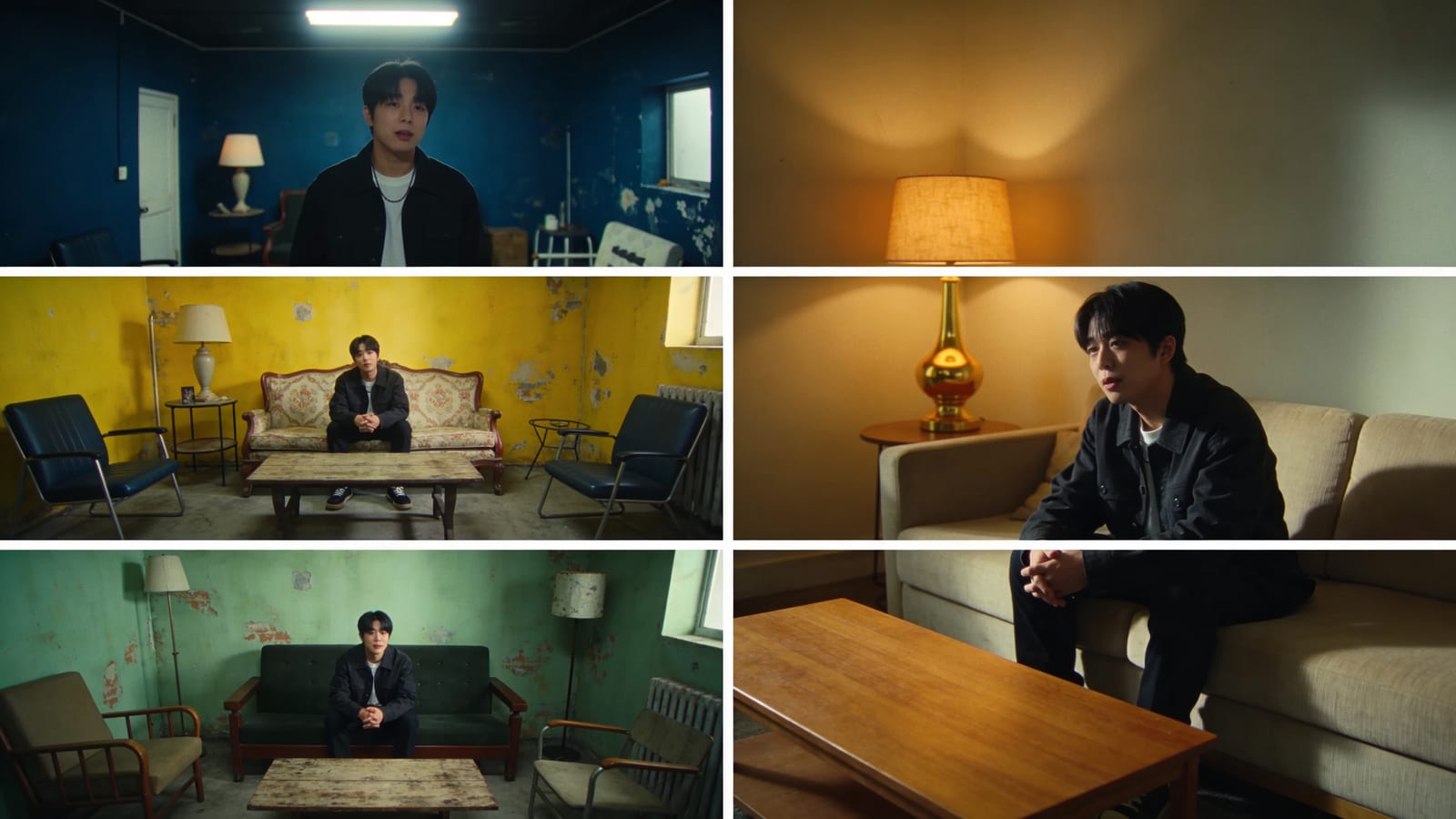
| Same name, different place | The verse “bedroom” and the chorus “bedroom” are two different rooms | Each shot is generated independently, and the model re-imagines what a bedroom looks like every time |
| Time-of-day jumps | Daylight outside this shot, night outside the next, daylight again after that | The prompt never locks lighting or time of day, so the model improvises |
| Set drift | The couch goes from fabric to leather, the walls from off-white to slate blue | Nothing constrains the furniture, walls, or materials |
| Indoor/outdoor mismatch | The chorus is on a “rooftop,” but the transition video splices the rooftop onto a hallway | Adjacent shots each go their own way, so the location isn’t continuous |
The human eye is genuinely less sensitive to scene consistency than to faces – but less doesn’t mean zero. Viewers may not be able to point to what’s wrong, but they subconsciously feel “this thing was stitched together.” Half of a music video’s “production value” comes from a face that doesn’t break; the other half comes from right here: the place is the same place.
Scene consistency is not character consistency: two problems, two locks
A lot of people treat the scene as “the character’s background” and handle it on the side. That’s a mistake. To a generative model, character and scene are two completely different kinds of constraints:
| Dimension | Character | Scene |
|---|---|---|
| Essence | Identity: locks “who this is” – face, hairstyle, skin tone | Environment: locks “where this is” – location, set, the compositional base |
| How many per shot | Possibly several (lead + supporting in frame) | Usually just one (a shot happens in one place) |
| Primary carrier | A reference image is almost mandatory (skip it and the face changes) | Description-first, reference image optional – one line like “a rooftop on a neon rainy night” is often enough |
| What changes | The person moves (pose, expression, blocking) | The place stays put (people act within the scene; the scene is the stage) |
Remember this: the character lock says “don’t swap the person”; the scene lock says “don’t swap the place – only change what the person does in the place.” The two locks differ in wording, carrier, and usage. Handle them together and you’ll inevitably drop one while chasing the other.
The scene-locking trio
1. Build a “scene library” instead of writing scenes ad hoc per shot
The biggest mistake is describing the scene fresh inside every shot’s prompt. Shot 3 says “in the living room,” shot 9 says “inside the living room” – two different phrasings, and the model hands you two different living rooms.
The right move is to pull scenes out and reuse them: a song usually has just 3-5 fixed scenes (living room, street, rooftop, inside a car…). Build each one once, and have every shot that uses that scene point to the same entry. Same entry = same description + same reference image = identical constraints every time = the location doesn’t drift.
This is exactly why SunoMV makes “scenes” a standalone library (up to 5) rather than a field inlined into each shot – it forces reuse, and reuse is where consistency comes from.
2. Description-first: one or two sentences that nail location, time of day, and set
The backbone of a scene is the text description, not an image. A good scene description should lock three things:
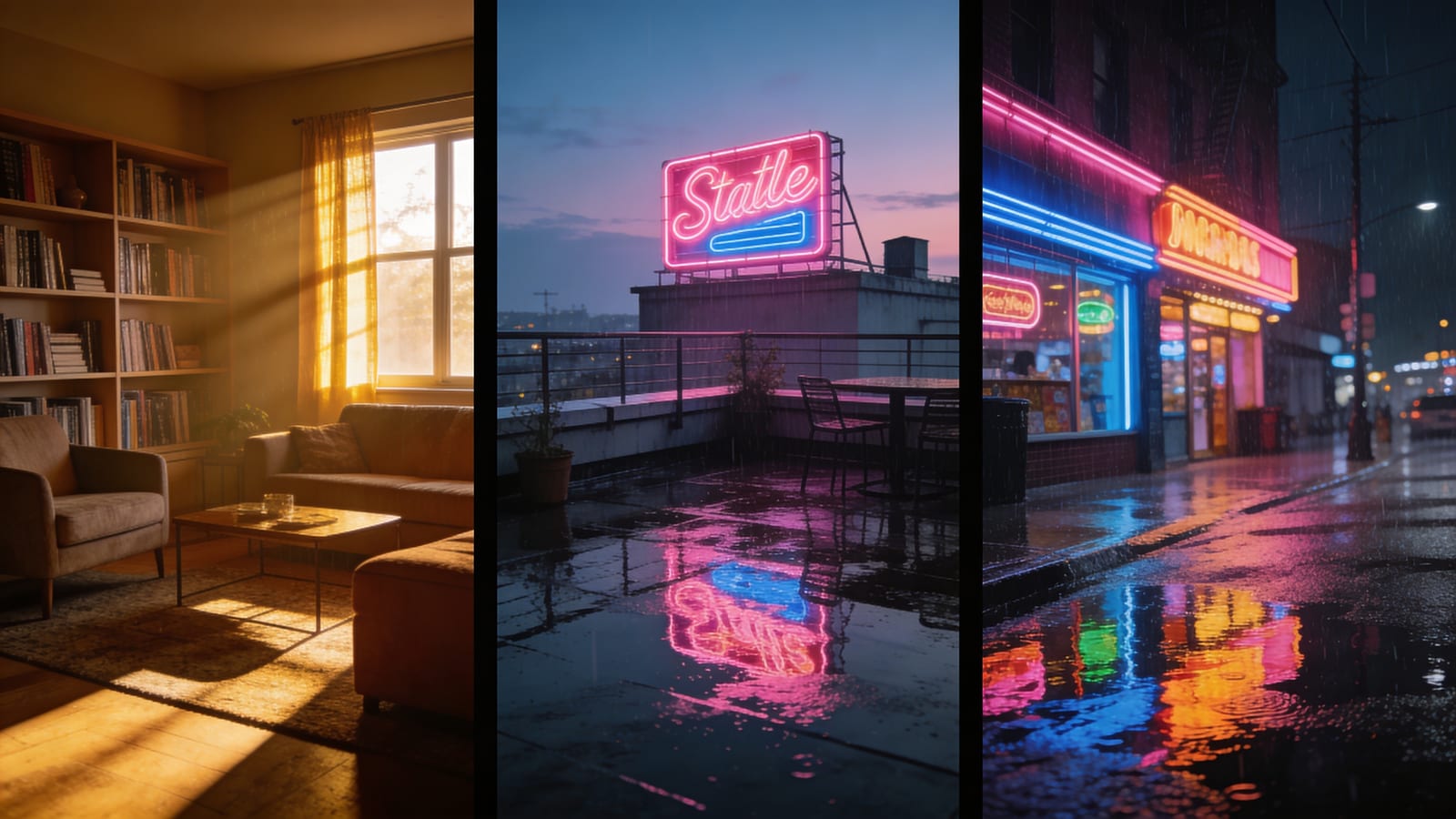
- Location + time of day: “rooftop atop an old-town building, dusk, the setting sun pressed against the skyline”
- Key set pieces: “a rusted water tank, a clothesline, a few pots of half-wilted plants”
- Light + mood: “warm orange side light, slight backlight, 35mm grain, nostalgic but not heavy”
Write this paragraph into the scene library, and every “rooftop” shot in the whole song receives this same paragraph – so the location stays continuous on its own.
Practical rule: A scene description should cover the unchanging things (location, set, light) and leave the changing things (the character’s pose, action, emotion) to the per-shot prompt. The more you nail the stage down in the description, the freer the performance on that stage becomes.
3. Reference image: optional, but it welds “this one place” permanently in place
Text can lock “what kind of rooftop,” but it can’t lock “this one rooftop.” When you need stronger continuity (say, a location that has to appear a dozen-plus times), give the scene a reference image:
- Upload an image of the location you want, or generate one you’re happy with first, then store it in the scene library as an anchor;
- After that, every shot in this scene feeds that image to the generative model as a “location reference,” strongly constraining “the same place, same architecture and environment.”
Note: the scene reference image is optional. Many songs are fine on description alone; the image is a reinforcement for “when you need to weld it down” – the opposite priority from character reference images, which are “almost mandatory.”
Character + scene: how to lock both in the same frame
Here’s the real challenge: when a shot has to lock both the face and the location, two reference images (character image + scene image) get fed to the model together – how do you keep them from clashing?
The key is to tell the model who is who. Under the hood, SunoMV declares the multiple reference images to the model by number:
image 1 is the character "Zhang Yi"; image 2 is the location/scene "old-town rooftop, dusk" (not a person).
Keep each person consistent with their character reference image (same face/hairstyle/skin tone),
keep the location consistent with its scene reference image (same place, architecture, overall environment),
and change only the person's pose and action, framing, and lighting to match the shot description below.
This numbered declaration does two critical things:
- Separates “person” from “place” – it explicitly tells the model “image 2 is a location, not a second face to lock,” so the model doesn’t try to lock a passerby in the scene as a lead;
- Separates “what to lock” from “what to change” – it locks identity and location while freeing up pose, framing, and lighting. That way the same character can take different actions and move to different spots within the same scene, while the person and the place stay “that person, that place.”
You don’t have to write this by hand – once you pick a character and a scene for a shot in the SunoMV shot editor, this coordinated declaration is assembled automatically. All you have to do is build the scene library right and pick the right scene for each shot.
Lock every scene in your whole song in 3 steps inside SunoMV
- Build the scene library: open “Scenes” in the shot editor and create 3-5 scenes for this song’s locations, each with a sentence or two of description (location + time of day + set + light). For locations you need welded down, add a reference image.
- Attach a scene to each shot: every shot single-selects one scene from the library. The verse stays in the “bedroom,” the chorus cuts to the “rooftop,” the bridge returns to the “bedroom” – and what it returns to is the same entry, not a new one.
- Generate / regenerate: at generation time, each shot’s scene description is automatically merged into the image prompt (locking the location), and the optional scene reference image is fed in as an extra reference (welding the set). Swap the scene and the cache invalidates automatically, re-rendering the image rather than fobbing you off with the old location.
Throughout, you only spend effort on “building the library” and “picking scenes” – the dirty work of locking is handled behind the scenes by the editor.
Troubleshooting
Q: What if a song has more than 5 scenes? First ask whether you truly need that many. Most music videos feel more like “one complete world” when they rotate among 3-4 scenes; too many scenes is itself a source of “collage feel.” If you genuinely need more, merge the close ones (“daytime living room” and “nighttime living room” can be the same description + a different lighting hint, rather than two separate scenes).
Q: I need both a day and a night version of the same location? Build them as two separate scenes: “living room - day” and “living room - night,” locking the lighting in each description, and add a reference image to each if needed. That way every shot that picks “living room - night” always gets the night set and never bleeds into the day one.
Q: Indoor-to-outdoor adjacent shots never connect? The scene lock handles “the location of a single shot”; continuity between shots comes from storyboard order and transition design. Grouping same-scene shots together and placing transitions on the boundary of a scene change is far more reliable than forcing the model to “guess” continuity. See the shot-by-shot storyboard method.
FAQ
Can Suno make a scene-consistent music video on its own? Suno handles the song; it doesn’t handle storyboarding or visual consistency. Turning a Suno song into a music video where the scenes don’t drift requires a layer of storyboard + character + scene control on top of the song – which is exactly what a tool like SunoMV does. See the full pipeline in From a Suno Song to a Finished Film: the Storyboard Workflow.
Does a scene always need a reference image? No. The backbone of a scene is the text description; the reference image is an optional reinforcement for “when you need to weld a particular location down completely.” Start with the description, and add an image if it drifts badly.
Character consistency or scene consistency – which one first? Character first. A broken face is something viewers spot instantly; a drifting location is a “hidden deduction.” Once the face is locked, use the method in this article to fill in the scene half.
Lock the other half too
Character consistency keeps your music video from “looking like the actor was swapped”; scene consistency keeps it from “looking like the set was swapped.” Lock both, and your AI music video finally looks like “a film shot inside one world” rather than a pile of good-looking but disconnected single frames.
Open the shot editor in SunoMV, build a small 3-scene library first, attach it to the few shots you’re least happy with, and regenerate once – you’ll immediately feel the coherence that “the same place” brings.
Popular guides
- 01 Suno AI Prompt Guide 2026: 10 Tips + Copy-Paste Templates
- 02 How to Turn Any Suno Song into a Music Video: The Complete Workflow
- 03 7 Best Free AI Song Generators in 2026 (Suno, Udio & More, Compared)
- 04 Suno v5 AI Music Complete Guide (2026): From Blank Page to Release-Ready Single
- 05 Suno Video Download Guide 2026: 3 Ways to Export AI Songs as MP4