/icon.png)

How to Turn Suno Songs into Music Videos? SunoMV End-to-End Workflow + Complete Library Management Guide (2026)
How to Turn Suno Songs into Music Videos? End-to-End Workflow + Complete Library Management Guide
You tweaked twenty-something prompts in Suno and finally landed a song where the chorus hits instantly. You want to post it on YouTube, share it with friends with visuals — but all Suno gives you is an audio file and a square cover image. You open your editing software, stare at an empty timeline for ten minutes, and close it.
This isn’t really a “can you edit video” problem. It’s a decision about turning audio into shareable content: either spend two hours manually syncing captions, hunting for footage, and tweaking transitions — or use a workflow that handles alignment automatically, leaving your time for the parts that actually require creative judgment.
Most tutorials only cover “how to make your first MV” and stop there. But serious creators produce five to ten songs a week — the first one is never the problem. Whether you can find any specific song in three seconds when you reach number twenty, and whether you can group songs from the same album together, is the dividing line between Suno as a toy and Suno as a production pipeline. This guide covers both how to turn a single song into an MV and the severely underrated part: library management.
Why It’s Worth Turning Suno Songs into Music Videos
Pure Audio’s Reach Is Shrinking in 2026
Short-video platforms have long operated on a “visual first” distribution logic. According to the Wyzowl 2026 Video Marketing Report, 89% of people say they’re more likely to take action after watching a brand video — and pure audio content gets almost no organic reach in feeds like TikTok, Reels, or Douyin. Platforms need a cover and visuals that work even on mute.
A Suno song with no visuals essentially lives only within Suno’s own platform and your private playlists. Give it visuals that progress with the lyrics and cuts that land on the beat, and it has a chance to enter a public feed.
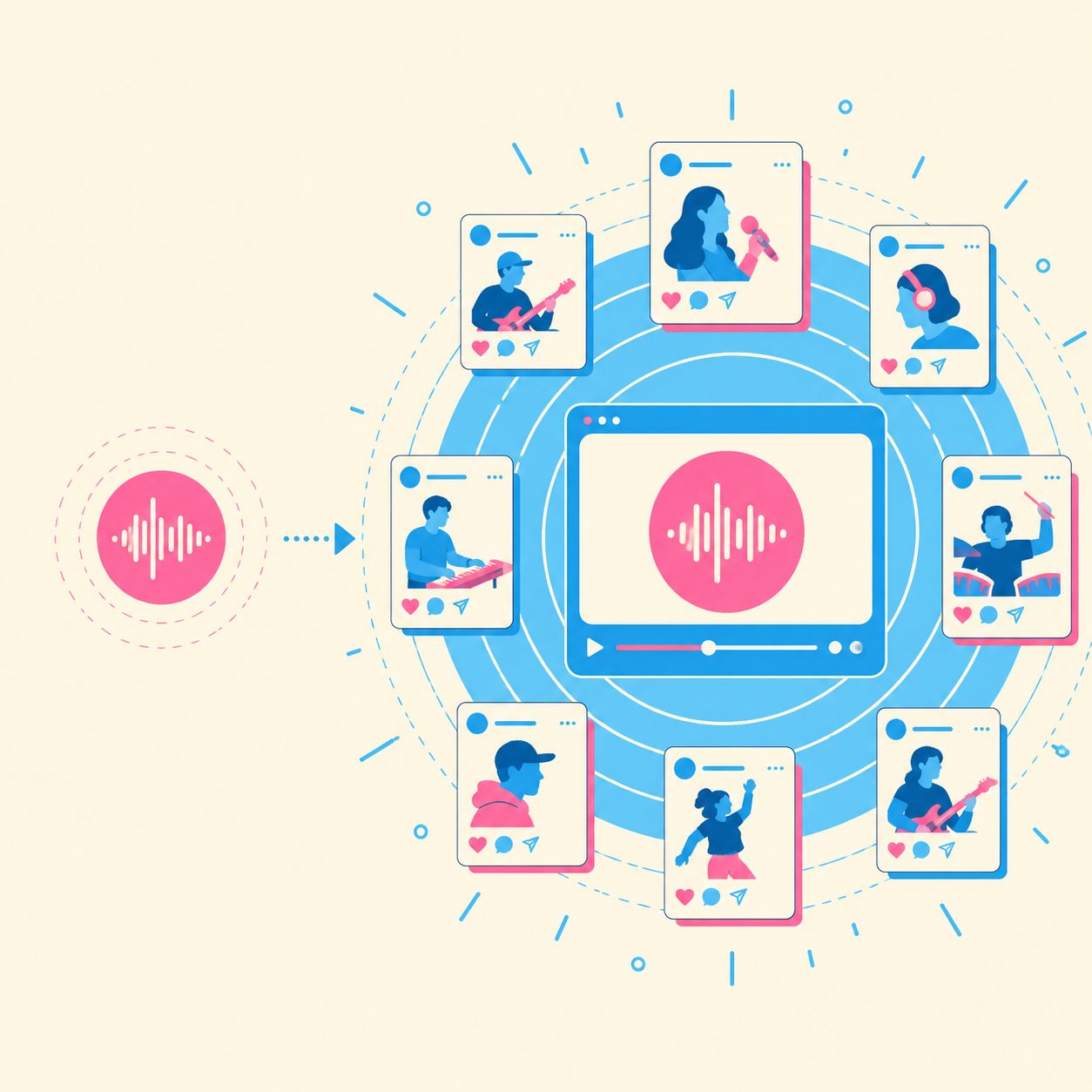
Practical rule: If you want a song to be discovered rather than just heard, it needs visuals first — audio is content, but video is the unit of distribution.
The Cost Structure of Making MVs by Hand Is Outdated
The traditional process: export from Suno → import audio into an editor → manually sync every line of lyrics to the timeline (typically 40–60 minutes for a 3-minute song) → style your captions → find footage → render. The mechanical alignment alone consumes the majority of your time.
SunoMV reads your Suno song’s lyrics and section structure directly, automatically handling timeline alignment and per-line image matching, delivering a first draft in minutes. Your work shifts from “syncing timelines” to “choosing a style, tuning the mood” — the first half goes to the tool, the second half is where creation begins.
Three Ways to Import Your Song into SunoMV
Not everyone starts from a Suno link. SunoMV supports three source types, each suited to a different kind of creator. Knowing which one applies to you saves a lot of frustration.
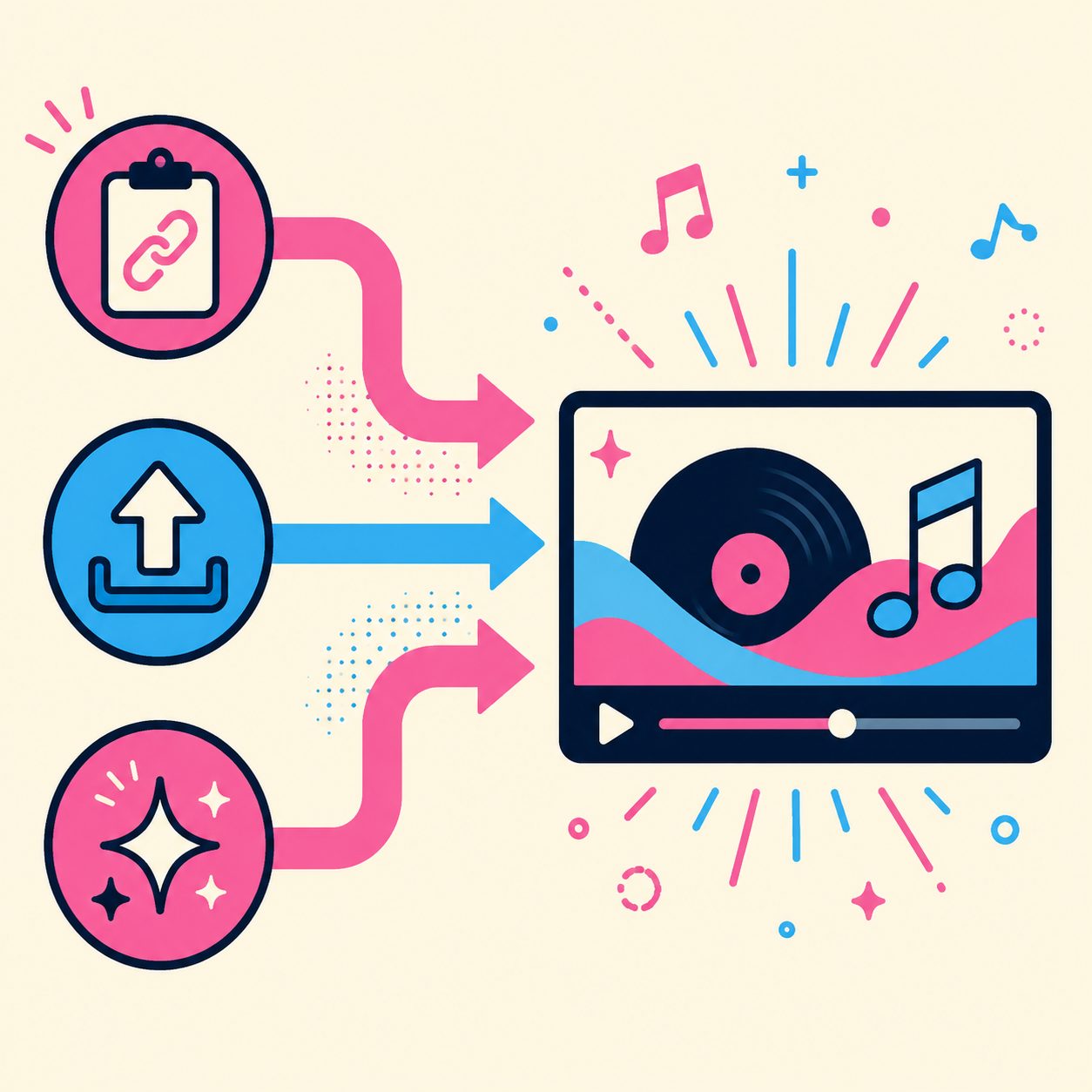
Source 1: Paste a Suno Link (Most Common)
This is the path most people take. You’ve already made the song in Suno, you copy the song link, paste it into SunoMV, and it automatically fetches the audio, cover art, lyrics, and section tags. Best for: heavy Suno users whose songs all live on the Suno platform.
Steps:
- Open your song in Suno and confirm it’s Published (unpublished songs cannot be fetched)
- Copy the song link (e.g.
suno.com/song/...or short linksuno.com/s/...) - Paste it into the SunoMV homepage input
- Wait for lyrics and cover art to be parsed automatically
- Choose a visual style and generate your first MV draft
Source 2: Upload a Local Audio File
If your song isn’t on Suno — maybe you recorded it yourself, made it with another tool, or downloaded a finished track — you can upload an audio file directly. Best for: independent musicians who have a finished audio file but not on the Suno platform.
Source 3: AI Creation (Start from Scratch)
Don’t have a song yet? You can use SunoMV’s AI creation feature to generate a song from a single description, then continue straight to making the MV. Best for: beginners who want a one-stop solution for songwriting and video production.
Practical rule: First figure out where your song lives — if it’s on Suno, use link import; if it’s on your hard drive, upload it; if you don’t have one yet, use AI creation. Choosing the wrong entry point is the most common sticking point for new users.
Songs from all three sources end up in the same library for unified management — which matters a lot (more on this in section four). To dive deeper into how lyrics get synced to visuals, read the Complete Guide to AI Lyric Video Generators.
Batch Production: Making 5–10 MVs a Week
Once you’ve got the single-song workflow running smoothly, batch capability is what really sets creators apart. Independent creators who maintain an account don’t rely on one viral hit — they rely on a consistent publishing cadence.

Turning “Making One” into “Making a Batch”
The key to batch production isn’t whether your tool can run multiple songs at once — it’s whether you can still tell which song is which after you’re done. That’s why library management has to be planned alongside batch production. If you make 8 songs in a week and they all pile up in one unorganized list, finding the one you want to revise the following week will take half an hour just to locate.
A reusable batch rhythm:
- Monday: generate 8–10 candidate songs in Suno
- Cut 3–4, keep the ones worth making into MVs
- Import each into SunoMV one by one, establishing a unified visual style baseline
- Immediately after rendering, file each into a folder by theme or album — don’t let them accumulate
- Release in batches over the week to keep your feed active
For a deep dive into tightly coupled AI music + AI video workflows, see the SunoMV Batch MV Production Methodology.
Practical rule: The bottleneck in batch production is never “generation speed” — it’s “whether you can find it afterward.” Archive as you render: that’s the line between a pipeline and a warehouse.
Library Management: Find Your 20th Song in Three Seconds
This is the part most Suno workflow tutorials skip entirely — and the one that most affects long-term efficiency. SunoMV’s library (accessible at My Songs) consolidates your songs and their generated MVs in one place, with a full suite of organization tools.

Folder Organization: Group by Album, Client, or Theme
You can create folders (e.g., “Spring 2026 Album,” “Client A Jingle,” “Meditation Series”) and move songs into them. If you delete a folder, the songs inside automatically return to “Uncategorized” — nothing is lost. Great for project-based management.
Dual Filtering by Source and Status
The library supports two filtering dimensions that combine for fast pinpointing:
| Filter Dimension | Options | When to Use |
|---|---|---|
| Source | All / Suno Import / AI Creation / Upload | “Find that demo I uploaded myself” |
| Status | Successful / Failed / Other Versions / Archived / All | “Find that one that failed so I can redo it” |
Layer both filters, then add title search and sort by newest / oldest / title / duration — locating any one song among dozens is essentially instant.
MV-Only View
If you just want to see songs that already have a rendered music video, toggle on “MV Only” and the list automatically filters out songs still at the audio stage — especially useful when preparing a delivery for a client or organizing your publishing calendar. To explore the visuals themselves, check out the Complete Guide to AI Music Visualizers.
Practical rule: Folders answer “which project does this batch belong to.” Filters answer “what’s the current status of this specific song.” Together they keep your library from turning into a junkyard as the numbers grow.
Keeping the Library Clean: Batch Archiving and Recovering Past Exports
The more you make, the longer the list gets. SunoMV provides batch operations to maintain order and ensure you can always find what you’ve made.
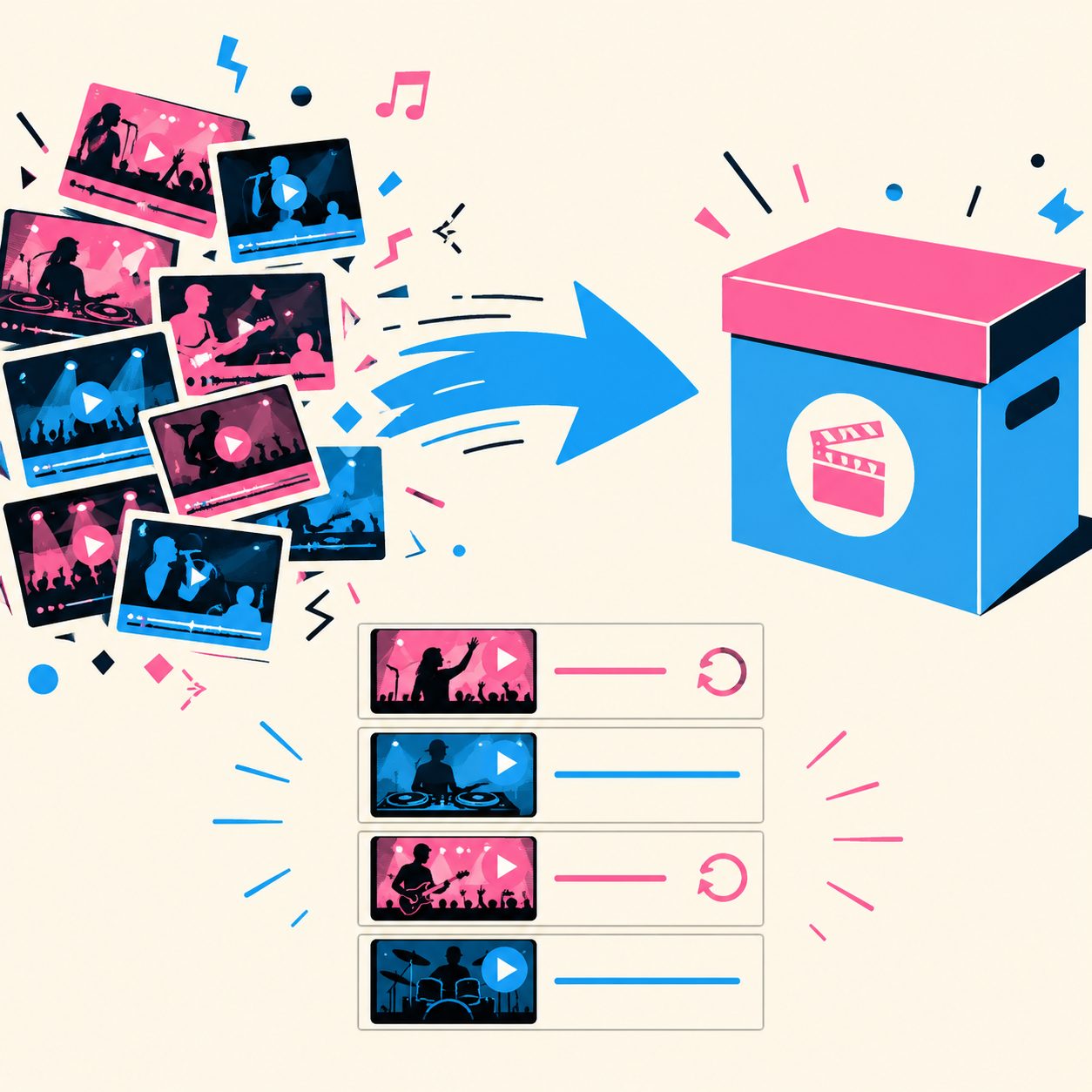
Batch Archive and Restore
Select multiple songs and archive them all at once (moved to the “Archived” tab — not deleted) or restore them, or move them to a specific folder in bulk. Archiving is not deletion — that’s the key point. Experimental songs or tracks you’re not ready to publish yet get archived so the list stays clean, but they’re recoverable anytime.
Every Song Remembers Its Last Export
Each song’s card displays a direct link to its most recently exported music video. You don’t need to re-render — you can grab the finished video link immediately. This means when a client comes back three months later saying “can you send me that MV again,” you open the library, find it, and done — no need to start over.
Frequently Asked Questions (FAQ)
Can Suno make music videos directly?
Suno focuses on music generation and outputs audio along with a cover image — it doesn’t provide a full music video with synced lyrics and visual progression. To turn a Suno song into an MV with visuals, lyric sync, and transitions, you need a dedicated tool like SunoMV.
My song isn’t on Suno — can I still use it?
Yes. In addition to pasting a Suno link, you can upload a local audio file or use the AI creation feature to generate a song from scratch. Songs from all three sources go into the same library for unified management.
Won’t it get messy after making a lot of songs?
That’s exactly what library management is designed to solve. Folder organization + source/status filtering + title search + multi-dimension sorting let you locate any song among dozens or even hundreds in seconds. Batch archiving lets you tuck away songs you’re not ready to publish, keeping the main list clean.
Can I still find an MV I exported before?
Yes. Each song’s card retains the entry point for its most recently exported MV — no re-rendering needed to retrieve the finished video link.
How do I redo a failed song?
In the library’s status filter, select “Failed,” find the song, and trigger generation again — no need to re-import from scratch.
From One Song to a Full Library: A Workflow You Can Use Right Now
String all the steps above into one minimal, reusable workflow:
- Generate songs in Suno → paste the link / upload / use AI creation to import into SunoMV
- Choose a visual style, generate the MV, fine-tune mood and transitions as needed
- Immediately after rendering, file the song into the right folder (by album or project)
- Use “MV Only” view to organize your weekly publishing list
- Batch-archive songs you’re not ready to publish to keep the library clean
In content creation, the people who keep going aren’t the ones with one viral hit — they’re the ones with a system that lets them pick up where they left off a week later. Suno handles “being able to create.” SunoMV handles “being able to finish, and being able to find it again.”
If you want to turn your Suno songs into a music video library you can publish, manage, and reuse, try SunoMV for free — paste a Suno link and see your first MV draft in minutes.
SunoMV Team
Popular guides
- 01 Suno AI Prompt Guide 2026: 10 Tips + Copy-Paste Templates
- 02 How to Turn Any Suno Song into a Music Video: The Complete Workflow
- 03 7 Best Free AI Song Generators in 2026 (Suno, Udio & More, Compared)
- 04 Suno v5 AI Music Complete Guide (2026): From Blank Page to Release-Ready Single
- 05 Suno Video Download Guide 2026: 3 Ways to Export AI Songs as MP4