/icon.png)
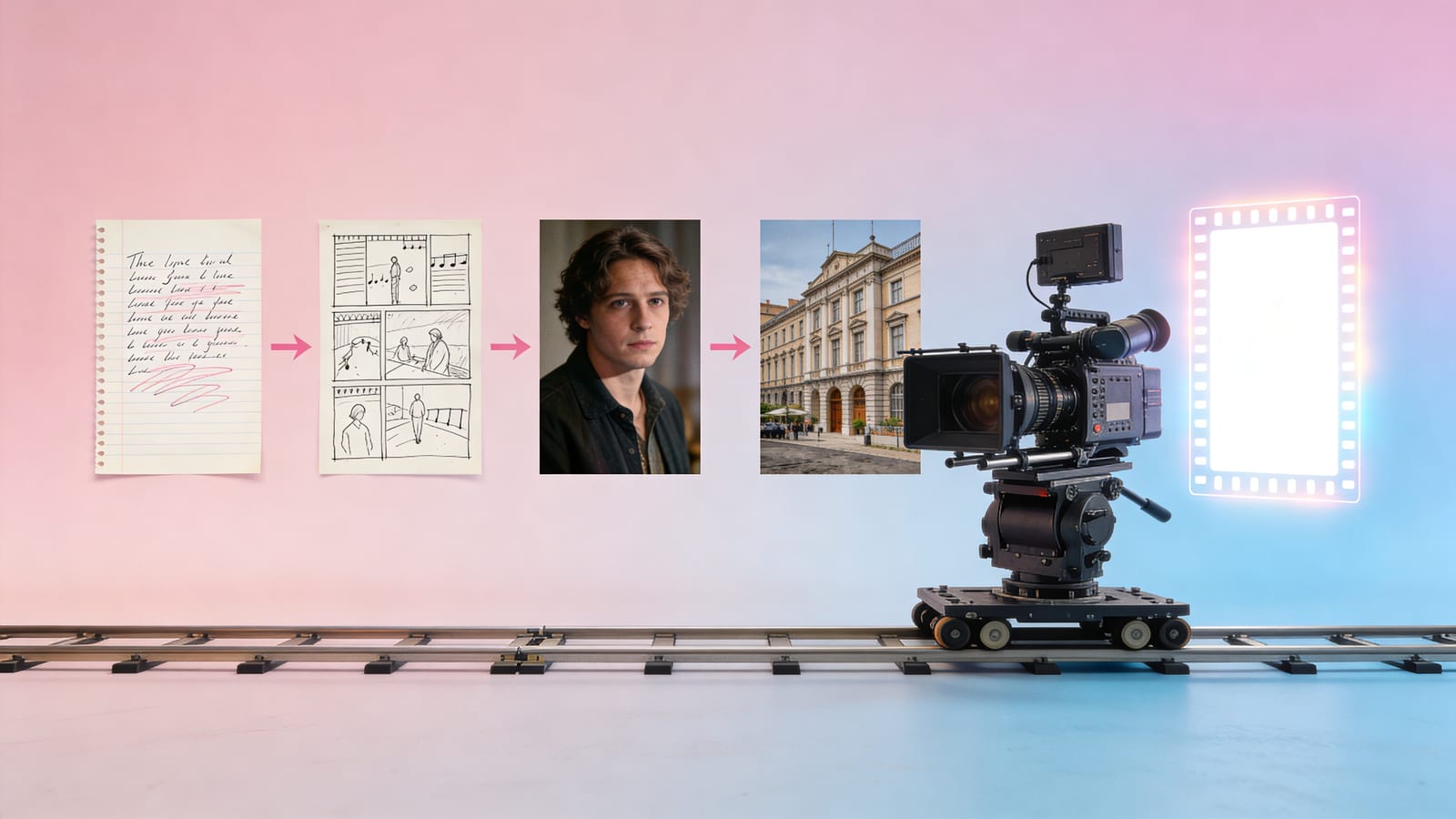
From a Suno Song to a Finished Film: The Complete Storyboard Workflow for AI Music Videos (Lyrics to Shots to Characters to Scenes to Camera to Export)

The one-sentence takeaway
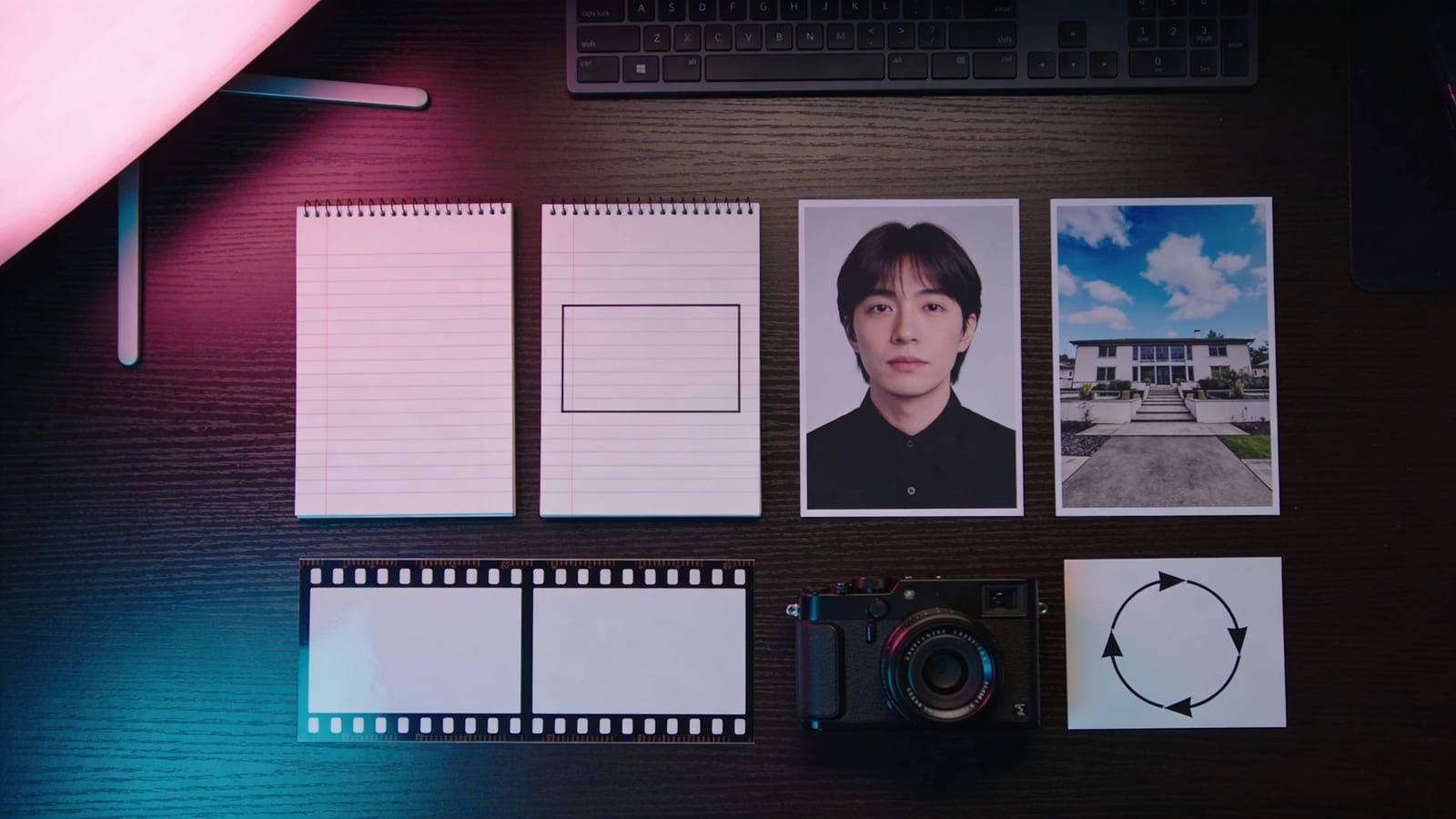
Suno spits out a song in 30 seconds, but turning that song into a music video that doesn’t look like an “AI collage” comes down not to fancier prompts but to a storyboard pipeline that divides labor like a film crew. This guide strings the whole process together — from lyrics to finished film, 6 stages, each with a method and the matching tool inside SunoMV.
By the end you’ll know: why most AI music videos look like “a slideshow flipping pages”; what a complete “lyrics to shots to characters to scenes to camera to export” workflow looks like; and which feature to use and which deep-dive method to read for each stage.
Why most AI music videos look like “a slideshow flipping pages”
Drop the lyrics into an image generator, one image per line, stitch them together — that’s how most people make an AI music video, and it’s why most of them look cheap:
- Visuals out of sync with the music: transitions don’t hit the beat, and the chorus’s emotional peak gets paired with a flat image;
- Flat camera language: one shot size and one camera angle throughout, no push, pull, pan, or tracking — like a slideshow;
- Characters and scenes drift: last shot’s lead has a new face this shot, and the living room turns into a different living room;
- No narrative arc: no setup, development, turn, or resolution across 90 seconds — just a pile of good-looking single frames.
Not one of these can be solved by “writing better prompts,” because they aren’t single-image problems — they’re process problems. The real fix is to treat making a music video as a pipeline with divided labor — exactly what film crews have done for decades, except now every role has an AI tool.
The complete workflow: a 6-stage overview
| Stage | What it does | Problem it solves | Deep-dive method |
|---|---|---|---|
| 1. Lyrics to shot list | Cut the lyrics into individual shots by rhythm | Visuals follow the music instead of being cut evenly | The Lyric-Driven Shot List Method |
| 2. Shots to storyboard | Set the shot size, camera angle, and visual content for each shot | Camera language is no longer flat | The Shot-by-Shot Storyboard Method |
| 3. Character lock | Lock the lead’s face with a reference image | The lead doesn’t change across shots | The 4-Step Character Consistency Method |
| 4. Scene lock | Lock location and set with a scene library | The location doesn’t drift across shots | The Scene Consistency Method |
| 5. Camera + transitions | Add camera movement to stills, add transitions between shots | Visuals move and land on the beat | See below |
| 6. Export | Subtitles, compositing, export | One-click finished film | See below |
Let’s break it down stage by stage.
Stage 1: Lyrics to shot list (rhythm first, visuals second)
Don’t cut shots evenly by sentence. Cut by musical structure and emotion: the verse narrates, the chorus erupts, the bridge turns. Each shot maps to a stretch of lyrics + one emotional beat. This step sets the rhythmic skeleton of the whole music video — the visuals follow the music, not the music following the visuals.
For the deep dive, see The Lyric-Driven Shot List Method and Narrative Arc Design.
Stage 2: Shots to storyboard (give each shot a language)
With a shot list in hand, set three things for each shot:
- Shot size: a wide shot establishes the environment, a medium shot gives emotion, a close-up gives detail;
- Camera angle: eye level, high angle, low angle — the angle is an attitude;
- Visual content: what specifically happens in this shot.
Variation in shot size and camera angle is the key to a music video not looking like “a slideshow flipping pages.” See The Shot-by-Shot Storyboard Method.
Stage 3: Character lock (don’t swap the person)
Feed your lead one reference image and the lead of the whole music video is locked. For multiple characters (lead + supporting), upload an image for each, and use @character-name in a per-shot prompt to specify “who appears in this shot.” This is the hardest and most critical hurdle in AI music video — if the face breaks, the whole film is wasted.
For the full method, see How to Keep Characters Consistent in AI Music Videos.
Stage 4: Scene lock (don’t swap the place)
The character lock handles “who”; the scene lock handles “where.” Build a small library of 3-5 scenes, each with a sentence or two of description (location + time of day + set + light), and add a reference image for any location you need welded down. Then have each shot single-select one scene from the library.
This is the stage most workflows skip, and it’s the source of the “one world” feel. For the full method, see The AI Music Video Scene Consistency Method.
Stage 5: Camera + transitions (make the visuals move and land on the beat)
A still on its own is dead. Two things bring it to life:
- Camera movement: add a Ken Burns-style push, pull, pan, or track to a still, and a single image gets a sense of breathing;
- Transition video: generate a stretch of transition between two adjacent shots so the cut isn’t hard — and it can land on the drum hit / beat.
Placing transitions on the music’s strong beats is the key move for “syncing visuals to the music.”
Stage 6: Export (subtitles + compositing + export)
The last step: align the lyric subtitles, composite all shots + transitions, and export the finished film in one click. When you have lyrics, use word-by-word alignment so the subtitles land on each word.
Which SunoMV feature each stage uses
This workflow doesn’t make you shuffle between seven or eight tools — SunoMV builds the six stages into a single shot editor:
| Stage | Matching feature |
|---|---|
| Lyrics to shot list | Paste a Suno link; it auto-cuts shots by the lyrics and produces a shot list |
| Shots to storyboard | Set shot size / camera angle / visual prompt per shot |
| Character lock | Character reference images (up to 3) + @character-name per-shot specification |
| Scene lock | Scene library (up to 5) + single-select a scene per shot |
| Camera + transitions | Per-shot camera movement + transition video between shots |
| Export | Subtitle alignment + compositing + export |
You enter through the audio-to-video generator, paste a Suno song, and follow this pipeline all the way to a finished film.
FAQ
Can Suno make music videos? Suno itself focuses on producing the song, and its built-in visualization is fairly basic. To make a “real” music video with storyboarding, consistent characters, and a unified scene, you need a layer of storyboard workflow on top of the Suno song — exactly what a tool like SunoMV does: paste a Suno link and follow this article’s pipeline all the way to a finished film.
How do I turn a Suno song into a music video? The shortest path: paste a Suno link -> auto-generate a shot list -> feed your lead a reference image to lock the face -> build a few scenes to lock locations -> generate the visuals shot by shot -> add camera movement and transitions -> export. This article’s six stages are that path expanded.
How long does one take? The skeleton (generating the shot list + batch-generating visuals) is a matter of minutes. What actually takes time is the “tuning” — locking characters, locking scenes, picking camera moves, landing the beat. How much effort you put into storyboarding and consistency directly decides whether the finished film is “watchable” or “looks real.”
Do I need to know storyboarding/cinematography to use it? No professional background required. The tool recommends a shot size and camera angle for each shot, and you fine-tune from there. The value of this workflow is exactly that: it turns decades of a film crew’s storyboarding experience into six steps you can follow.
Get the process running
Making AI music videos isn’t about “finding a stronger model” — it’s about “getting the process right.” Lyrics set the rhythm, the storyboard sets the language, the character locks the face, the scene locks the location, camera movement makes it move, and transitions make it connect — drop any one of the six stages and the finished film loses a degree of “real.”
Open SunoMV, paste your Suno song, start from the shot list, and run through these six steps. You’ll find that making a “respectable” AI music video was never about luck — it’s about process.
Popular guides
More in this series
- The Complete Guide to AI Lyrics Video Makers: Free Online Tools & SunoMV Workflow in 2026
- Word-by-Word Synced Lyric Videos (2026): Karaoke Lyrics That Never Drift — SunoMV Guide
- The Lyric-Driven MV Narrative Arc Method: From Text to SunoMV Shot Sequences (2026)
- AI Music Visualizer Workflow: The SunoMV Method from Lyrics to Storyboard to Visual Rhythm 2026
- Verse-Chorus-Bridge Shot Rotation Method (2026): Align Your AI MV's Visual Structure 1:1 with Your Song Structure