/icon.png)
Suno Arrangement in Practice: Lock Song Structure with Timeline Section Tags So Your MV Storyboard Has Something to Stand On (2026)

Short answer: lock your song structure with section tags first, then hang your MV storyboard on that structure. As of mid-2026, Suno’s arrangement tools let you see your song cut into verses, choruses, bridges, and other sections right on the timeline, and you can drag them to reorder. Treat those sections as the skeleton of your storyboard — a new visual theme every time the section changes — and your MV’s cut points stop being a matter of feel and start landing exactly on the joints of your song’s structure.
Most people making AI music videos get stuck in the same place: the song is generated, but when it’s time to cut the footage, the timing of every cut is pure instinct. The chorus is supposed to explode, but the visuals are still sitting on the previous empty shot. The bridge takes an emotional turn, but the camera doesn’t react at all. The problem isn’t editing instinct — it’s that the song structure was never made explicit in the first place, so the visuals naturally have nothing to anchor to.
Suno has now turned “structure” from an invisible black box into sections you can see and drag on a timeline. That shift matters for a lot more than making it easier to revise a song — it hands MV production a ready-made storyboard.
1. What Section Tags Are: Writing Song Structure as a Hard Constraint
When writing lyrics, putting structural tags like [Verse], [Chorus], [Bridge], [Intro], [Outro], and [Instrumental Break] on their own line before each block of lyrics is how you tell Suno, explicitly, “a new section starts here.” According to Jack Righteous’s guide to Suno section tags, putting structure tags on their own line — and repeating [Chorus] wherever you need the hook to recur — is the most reliable way to get v5.5 to reproduce section structure consistently.
The value of these tags is that they’re a hard constraint, not a suggestion. Without tags, Suno guesses where the chorus should go, and that guess changes every time. With tags, the section boundaries are fixed, and everything you plan visually afterward has a foundation that doesn’t drift.
Practical rule: The first step in writing lyrics isn’t writing words — it’s laying out the section-tag skeleton first:
[Intro] [Verse] [Chorus] [Verse] [Chorus] [Bridge] [Chorus] [Outro], then filling in lyrics under each tag. Structure comes first, so the visuals have an anchor.

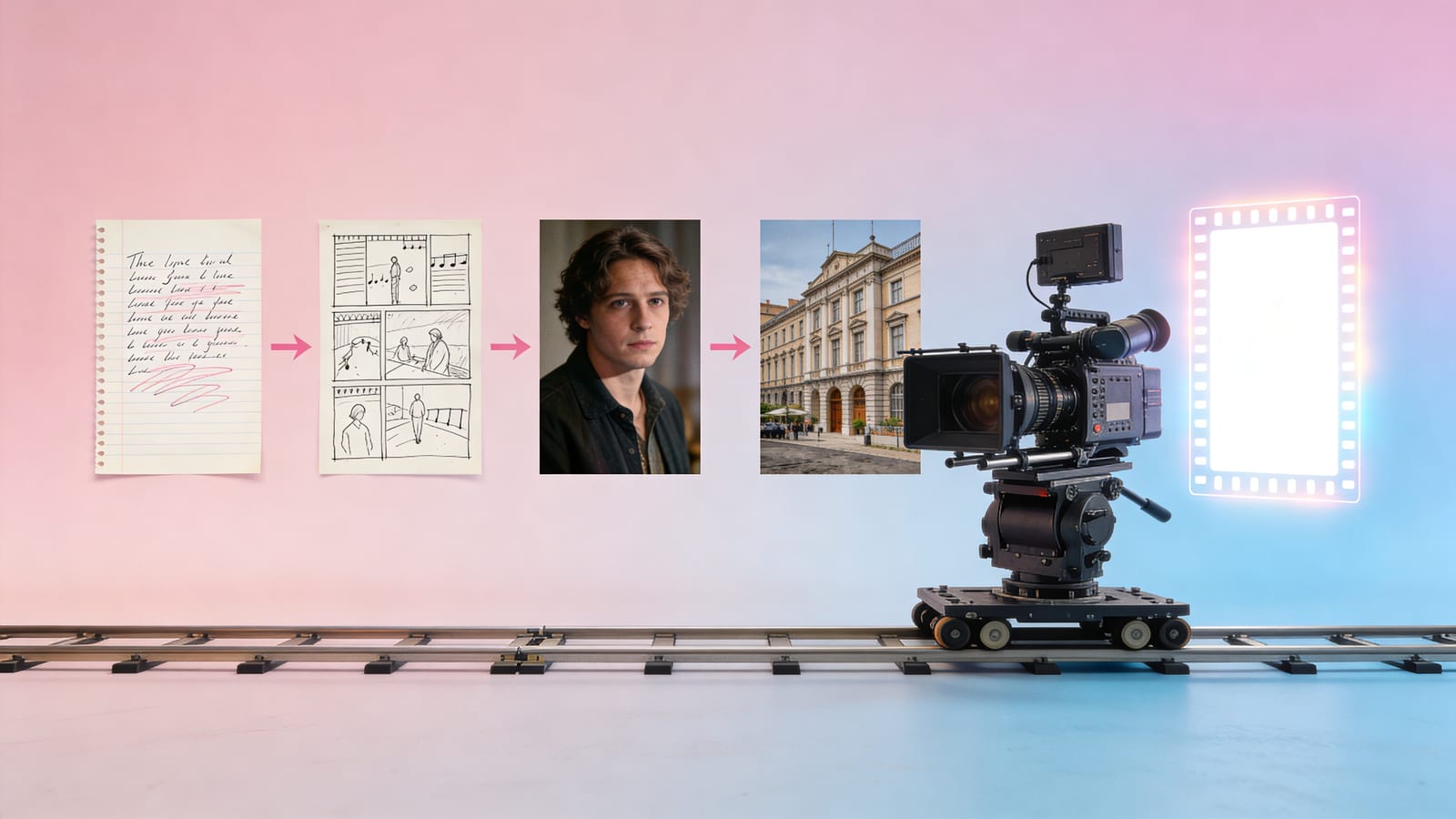
Image: SunoMV · A song with clear section structure naturally comes with a storyboard built in
2. Timeline Arrangement: Structure You Can See and Drag
At the core of Suno Studio is a visual timeline that renders your song as a waveform, split by detected sections (intro, verse, chorus, and so on). According to Suno’s official Studio help docs, you can drag sections on this timeline to reorder your song’s structure, and you can move, duplicate, split, and fade audio blocks.
Even more important is the per-section regeneration capability — Suno’s own summary is “fix it in place, don’t reroll the whole song.” If you don’t like the chorus, you can reroll just the chorus without gambling on the rest of the track. For MV creators, this means that once your structure is locked in, you can safely attach visuals to it without worrying that a regeneration will scramble the section order and invalidate your storyboard.
These arrangement features are gated by subscription tier: according to Suno’s official documentation, the Pro tier’s song editor includes stem separation for up to 12 tracks, section replacement, and adding, removing, and reordering sections; full multitrack timeline editing (including multitrack layering, EQ, external audio upload, WAV export, and more) is exclusive to the Premier tier.
Practical rule: Don’t start on visuals before your structure is locked. Drag your sections into the order you’re happy with on the timeline and lock it first, then move into storyboarding — otherwise every time you revise the song structure, the storyboard has to be redone.
3. Mapping Sections One-to-One onto Your MV Storyboard
This is the core move of the whole method: one section equals one visual theme.
Once your song structure is locked, you already have a storyboard in hand — every section tag is the entry point for a shot group. Here’s a mapping you can apply directly:
| Song Section | Visual Theme | Cut Behavior |
|---|---|---|
[Intro] | Establishing shot / empty frame | Slow fade in, set the scene and tone |
[Verse] | Narrative progression / character close-ups | Steady camera movement, follow the lyrics’ story |
[Chorus] | Emotional peak / wide shots or fast-paced cutting | Faster cuts, color and energy pushed to the max |
[Bridge] | Emotional turn / contrasting visuals | Change color grading, change perspective, create contrast |
[Outro] | Resolution / return to the opening motif | Slow fade out, echo the [Intro] |
Section boundaries are your hard cut points. The moment the chorus hits, the visuals should change — because the song structure just shifted, the listener’s ear has already been pulled to the peak, and the visuals need to keep up. This “cut with the structure” approach shares the same underlying logic as the storyboard-driven AI music video method; if you want a more granular shot-by-shot breakdown, check out the scene-by-scene storyboard method next.
Practical rule: Every time the chorus repeats, the visual motif should repeat too — but with an upgrade. Same composition, but the second chorus adds one new element. Let the audience “recognize it” while still feeling something fresh — that’s the visual counterpart to repeating
[Chorus]in your section tags.
4. Why the Real Battle Starts “After Generation”
The AI music tool arms race is all about competing on “generation quality.” But take that one step further: once generation cost approaches zero and anyone can make a song that sounds decent, the song itself stops being scarce — the value shifts to whether it can be shared. And a song is intangible; without a visual vehicle, it can’t spread in the short-video era.
The image below shows what the finish line looks like — a well-structured song, ultimately turned into a finished, shareable video:

Image: SunoMV · A song’s value lies in being seen; video is the vehicle for distribution
That’s why “how to turn a song into a shareable MV” is worth more effort than “how to generate a better song.” The real point of section tags plus timeline arrangement isn’t making the song more perfect — it’s giving your MV a reliable structural blueprint, so the leap that happens “after generation” has a clear path to follow. Competitors are racing to see who can generate something more convincing; SunoMV cares about what happens after generation — how it gets seen. To walk that structural blueprint all the way through to a finished video, see the complete storyboard-to-screen workflow.
5. Our Call (Feel Free to Hold Us to It)
- By mid-2027, section-level structure control will become table stakes for AI music videos — creators who can’t use section tags to plan their visuals will clearly fall behind those who can. Come back in a year to check the score: if “cutting with the structure” is still a niche technique by then, this call was wrong.
- Within the next 12 months, AI music platforms will keep making “structure” more explicit — finer section control, more visual timelines. In turn, the more transparent a platform’s section structure is, the easier it is to build an MV storyboard on top of it — that will become a real factor in choosing a platform.
- Disclosure worth stating explicitly: the second point above is favorable to us as an MV tool maker, so weigh it with that in mind.
FAQ
Can I use section tags without a Pro/Premier tier? Yes. Section tags are text instructions written into the lyrics, and any tier can use them to plan structure. Timeline drag-to-reorder, per-section regeneration, and multitrack editing are the tier-gated editor features.
Will section tags show up in the final audio? No. They’re structural instructions meant for the model, not sung or spoken aloud — they only affect how sections are generated.
Why does my chorus sound different every time?
Usually it’s because the [Chorus] tag isn’t repeated, or the tags aren’t on their own line. Putting structure tags on their own line and repeating them before every chorus significantly improves how consistently the section reproduces.
Can I still change the structure after it’s locked? Yes, but do it early. According to Suno’s release notes, the editor supports replacing and reordering sections — but once you’ve already storyboarded to a structure, changing that structure means redoing the storyboard. So “structure first, visuals after it’s locked” is the order that saves you the most work.
Try It Now
The next step after locking your structure is turning it into a music video you can actually share. Hand SunoMV the song you’ve structured in Suno, and it generates matching visuals section by section — one timeline, all the way to a finished video.
Turn your structured song into an MV with SunoMV
SunoMV Team
Made in SunoMV · real exports
See what a song turns into
Every sample below is an untouched SunoMV export: 3 AI storyboard shots, one AI-filmed clip, then the lyrics. Each one uses a different caption style and frame size.
Popular guides
More in this series
- Christmas AI Music Video Planning: The Q4 Holiday Production Calendar (2026)
- SunoMV Music Video Production Workflow: A Complete Professional Guide from Concept to Final Cut
- Negative Space Wins: The "Breathing Room" Editing Method for AI Music Videos (2026 SunoMV Method)
- The Recurring Visual Motif Method for Music Videos (2026)
- Silence and the Pause: The Tension Method That Lets an AI Music Video "Breathe" (2026 Method) — Stop Filling Every Beat