/icon.png)
How to Turn a Suno Song into a Real AI Music Video (No More Frozen Frames on Instrumental Breaks)

3-second answer: Suno generates the song, not the video. To turn a Suno track into an actual music video, paste your song link into SunoMV’s AI Music Video Generator — it reads your lyrics, generates a matching scene for each line, and stitches them into a synced music video. The big upgrade in 2026: long instrumental breaks no longer freeze on one still image. Creating and previewing is free — you only pay when you’re ready to download.
You made a great song in Suno. You hit play expecting a music video — and got a static cover image with audio. That is the single most common surprise for new Suno users, and the most-searched question about it: can Suno make music videos?
Short answer: not on its own. Suno is a song generator. The music video is a separate step — and the quality gap between tools is huge. This guide walks the 3-step workflow, and fixes the problem that makes most “Suno to video” results look like a slideshow.
Can Suno Make Music Videos?
Suno creates the audio track and a single cover image. It does not generate a scene-by-scene music video that follows your lyrics. So when people search does Suno make music videos or can you make music videos with Suno, the honest answer is: you need a second tool that takes your finished Suno song and builds the visuals on top.
That second step is exactly what an AI music video generator does — turn the song you already have into a watchable video.
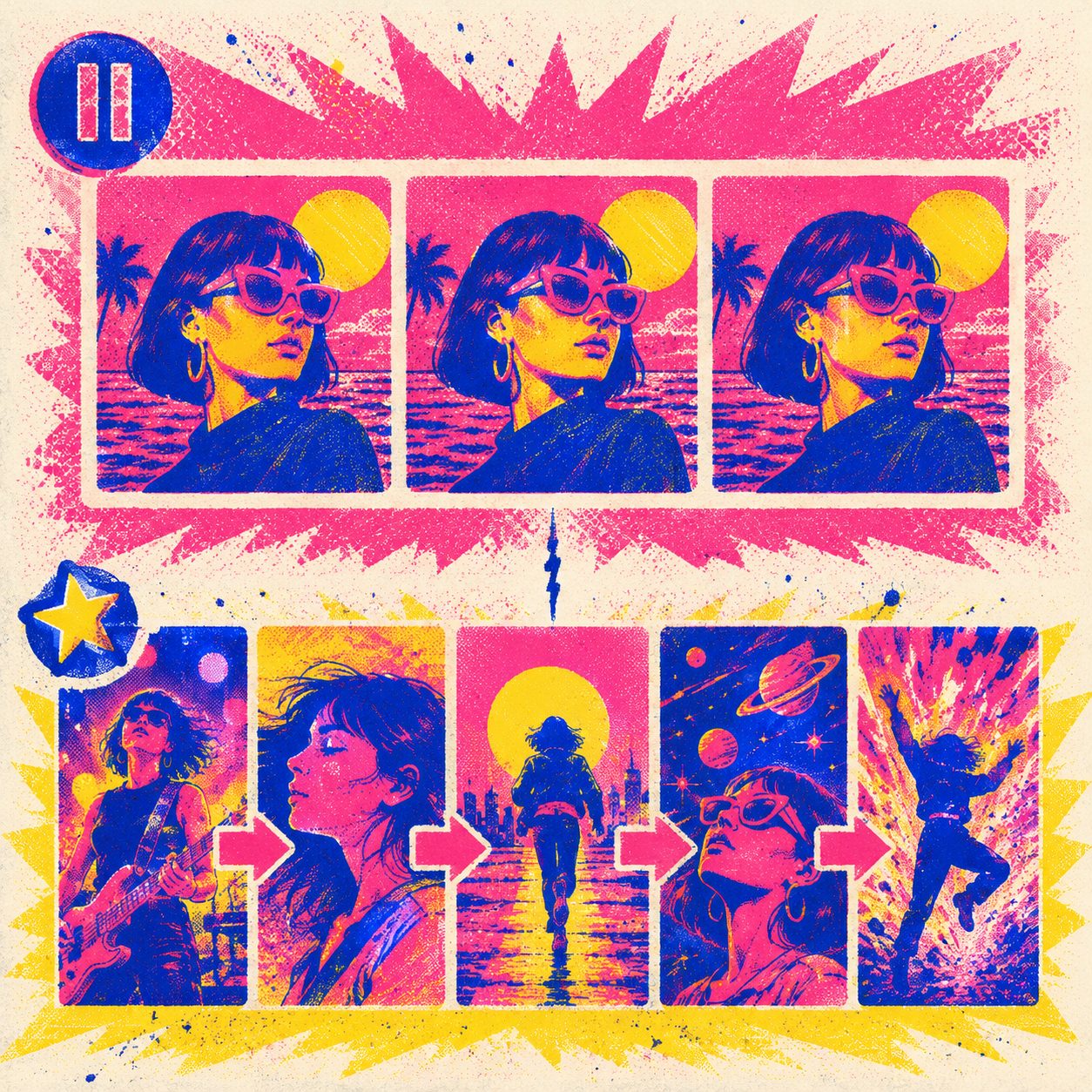
Why Most “Suno to Video” Results Look Like a Slideshow
Most quick Suno-to-video tools do one of two cheap things:
- Show the cover image for the whole song (a static picture with a waveform), or
- Cross-fade between a handful of images that don’t follow the lyrics.
The result feels like a PowerPoint deck, not a music video. And there’s a specific failure point everyone hits:
| Problem | What you see | Why it happens |
|---|---|---|
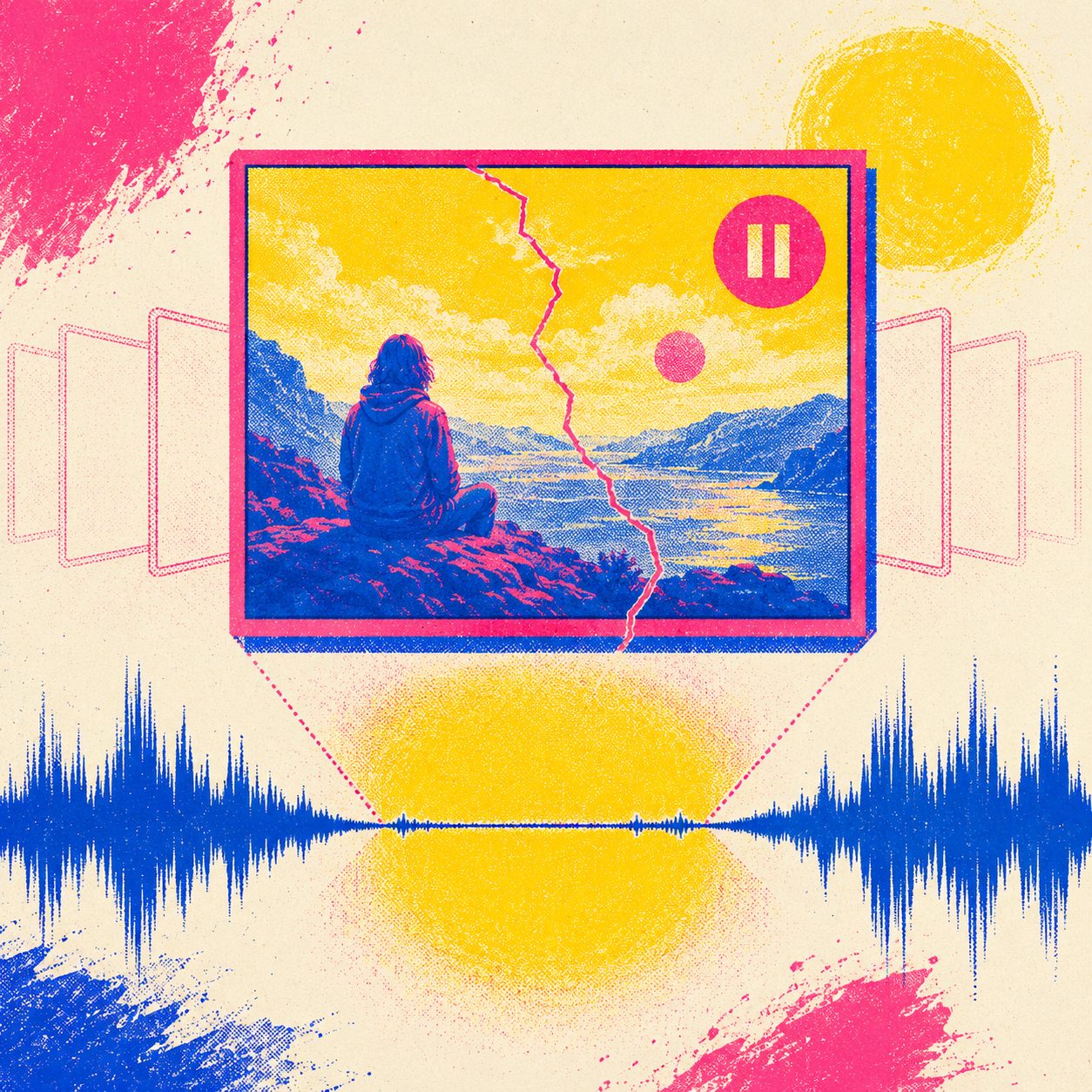
| Instrumental breaks freeze | 30–40s of one frozen image during the intro / interlude / outro | The tool only animates the first few seconds, then holds the frame |
| Visuals lag the lyrics | The picture changes a beat after the words | Loose timing between subtitles and scenes |
| Repetitive scenes | The same 3 images recycle | No per-line scene generation |
The frozen instrumental break is the one viewers notice most — a long [Intro] or [Inst] section sitting on a single image kills the “music video” feeling instantly.
How to Turn a Suno Song into an AI Music Video (3 Steps)
The workflow is short. No editing software, no timeline scrubbing.
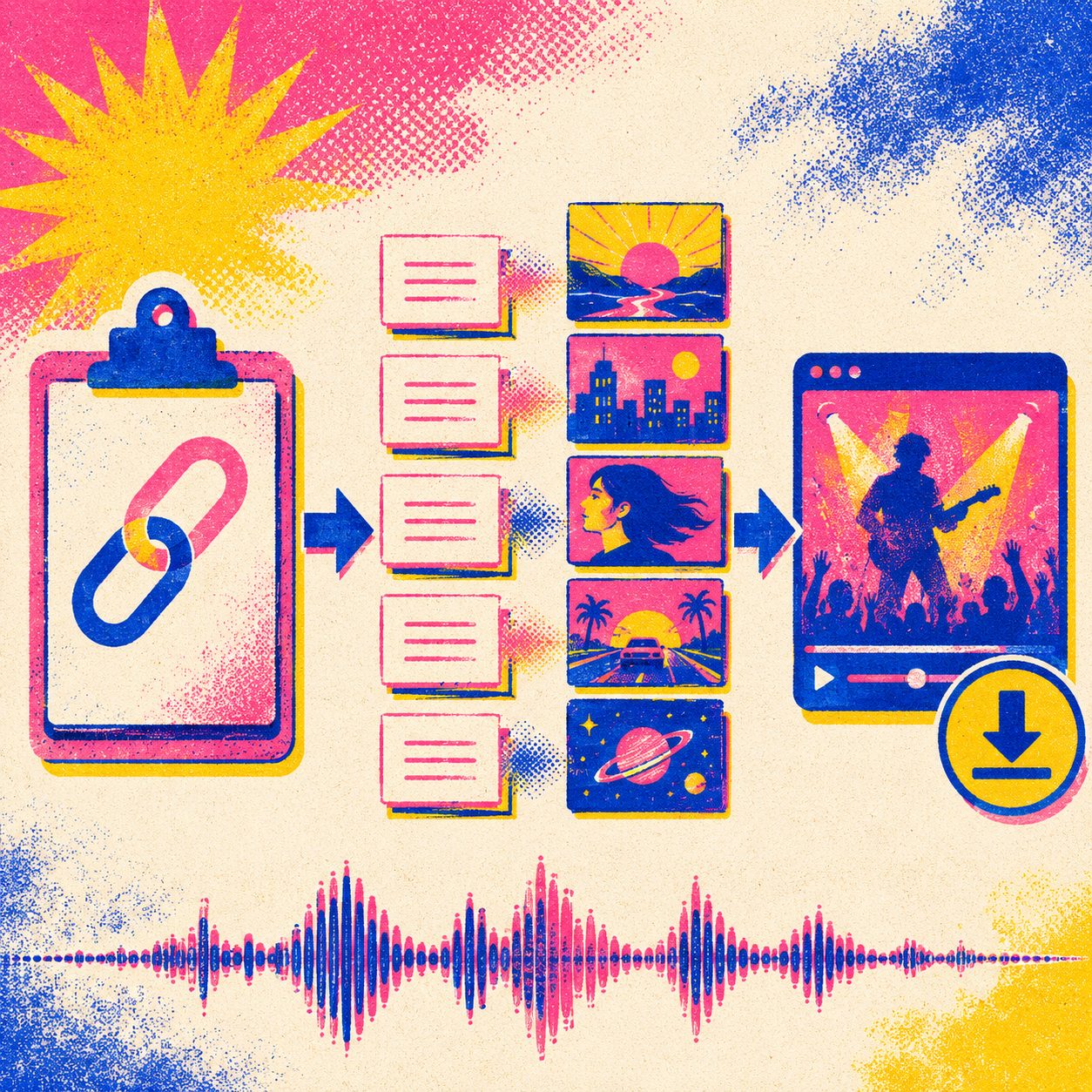
- Paste your Suno link. Drop the song URL into SunoMV (or upload the audio file). It pulls the lyrics and timing automatically.
- Let it build scene-by-scene. The AI reads each lyric line and generates a matching image for it, then turns each image into a short moving clip — so the visuals actually follow the story of the song. You can pick an art style (cinematic, anime, 3D, realistic) up front.
- Export and share. Render to MP4 in 16:9 for YouTube or 9:16 for TikTok / Shorts / Reels, then download.
That’s the whole loop. The interesting part — and the reason results don’t look like a slideshow anymore — is how the long instrumental sections are handled.
Sub-Shots: Keeping the Instrumental Breaks Alive
This is the 2026 upgrade that fixes the frozen-frame problem.
A line like [Intro] or [Instrumental] often stretches 30–40 seconds with no lyrics. Older tools rendered that as one image. The sub-shots feature splits a long section into several connected cinematic shots — each with a different camera angle, framing, and motion — and fills every one with a continuous moving clip up to 15 seconds long.
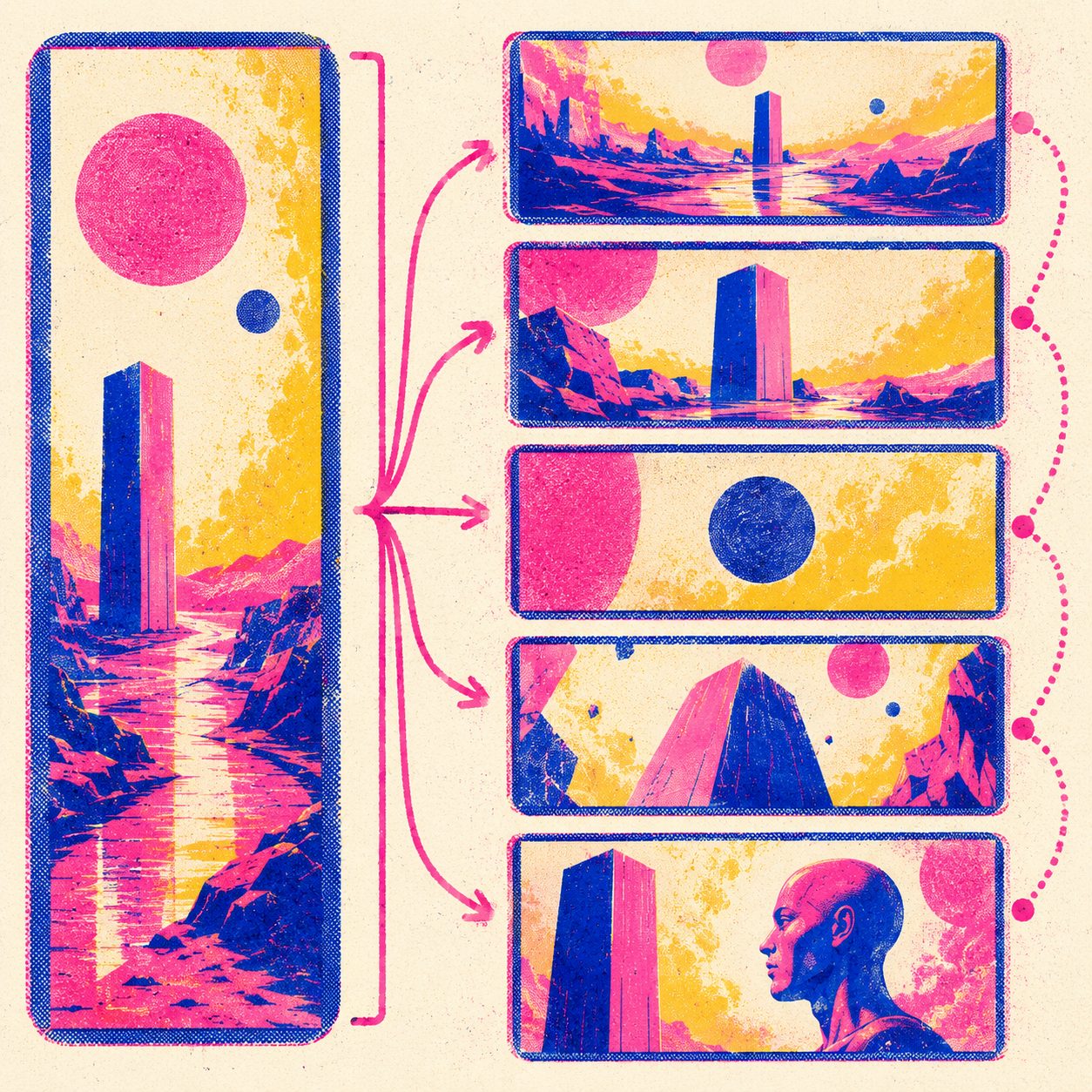
Practical rule: If a section runs longer than ~10 seconds, split it into sub-shots. One still image can carry a short lyric line; it cannot carry a 40-second interlude.
So instead of staring at a frozen picture through the intro, you get a sequence that breathes — a wide establishing shot, a slow push-in, a cutaway — like a real director would cut it. The same fix also tightens the “visuals lagging the lyrics” feeling, because each shot is placed against the actual timing of the track.
It’s one tap: open a long segment and choose Split to sub-shots. The video for each new shot starts generating automatically.
What to Look For in a Suno Music Video Tool
When you compare options (and there are many — from quick lyric-video makers to full generators), these are the things that separate a real music video from a slideshow:
| What to check | Slideshow tools | A real AI music video |
|---|---|---|
| Instrumental breaks | One frozen image | Multiple moving sub-shots |
| Scene-to-lyric sync | Loose / off-beat | Each line gets its own scene |
| Motion length | 2–4s loops | Continuous clips up to 15s |
| Lyric / karaoke text | Often missing | Synced on-screen lyrics |
| Export | 16:9 only | 16:9 + 9:16 vertical, MP4 |
If a tool can’t keep a 40-second interlude moving, it’s a lyric slideshow with extra steps.
FAQ
Q: Can Suno make music videos by itself?
No. Suno generates the song and a cover image. For an actual scene-by-scene video, run your finished song through an AI music video generator.
Q: Is there a free Suno music video generator?
Creating and previewing is free — paste a link, pick a style, and watch the finished music video before you spend anything. Downloading it requires a paid plan (Plus/Pro), which also unlocks no watermark, higher resolution, and longer videos.
Q: Can I download the music video as an MP4?
Yes. Export to MP4 in 16:9 (YouTube) or 9:16 (TikTok / Reels / Shorts) once you’re on a paid plan — that’s also what unlocks no watermark, higher resolution, and longer videos.
Q: My instrumental break is stuck on one image — how do I fix it?
Open that long segment and use Split to sub-shots. It breaks the section into several moving shots so the screen keeps changing through the whole interlude instead of freezing.
Q: Can I make a lyric video instead of full scenes?
Yes — synced on-screen lyrics (karaoke style) are built in, and you can combine them with the generated scenes or use them on their own.
Q: Will the visuals match my lyrics?
Each lyric line gets its own generated scene, placed against the song’s real timing — so the picture follows the words instead of drifting.
Next Steps
- Turn your song into a video: SunoMV AI Music Video Generator (free to start)
- Sing-along version: AI Karaoke Video Maker
- Covers of existing songs: AI Cover Song Video Maker
- Make the song first: Suno
Suno gives you the song. The music video is the part that makes people stop scrolling — and the difference between a slideshow and a real one comes down to whether the quiet, lyric-free stretches keep moving. Paste a track into SunoMV and watch the next instrumental break actually play out.
SunoMV Team
Popular guides
More in this series
- Free Suno MV Maker with Stock Footage: The 2026 Practical Guide
- How to Make a Music Video From a Song: 5-Step SunoMV Guide (2026)
- Suno's Hidden 10s Cover Art Animation Trick: 5 Free Mini-MV Use Cases (and When to Upgrade to SunoMV) — 2026
- Audio to Video AI: The Complete 2026 Guide (Suno, Spotify, Local MP3 → Music Video)
- Make Me a Free Music Video — Let SunoMV's AI Director Do It For You in 2026