SunoMV SunoMV
गाइड

किसी भी Suno गीत को Music Video में कैसे बदलें: Complete Workflow

प्रकाशित · द्वारा SunoMV Team

Suno + SunoMV: AI Music की Last Mile को Solve करना

Suno किसी को भी एक text prompt से एक complete गीत generate करने देता है — melody, arrangement, vocals, lyrics, सब कुछ एक shot में। लेकिन एक बार जब आपके पास एक track होता है जो आपको पसंद है, तो आप इसके साथ क्या करते हैं?

Social media पर एक audio link share करें? एक static cover image पोस्ट करें जिसमें नीचे audio play हो रहा हो? न तो approach real traction पाता है। Social platforms अपने algorithms में video content को prioritize करते हैं। Audio-only posts minimal organic reach receive करते हैं।

SunoMV इस last-mile problem को solve करने के लिए exist करता है। यह native Suno link support के साथ एकमात्र AI MV generator है — एक link paste करें और सब कुछ automatically होता है। कोई audio download नहीं, कोई manual upload नहीं, कोई hand-aligned lyrics नहीं। एक pasted link से लेकर एक finished music video export करने तक पूरा flow आमतौर पर पाँच मिनट से कम लेता है।

Suno Creators के लिए SunoMV सर्वोत्तम विकल्प क्यों है

कई AI video generators available हैं, लेकिन अधिकतर general-purpose tools हैं। SunoMV music video use case के लिए specifically engineered है। यहाँ यह अपने आप को differentiate करता है।

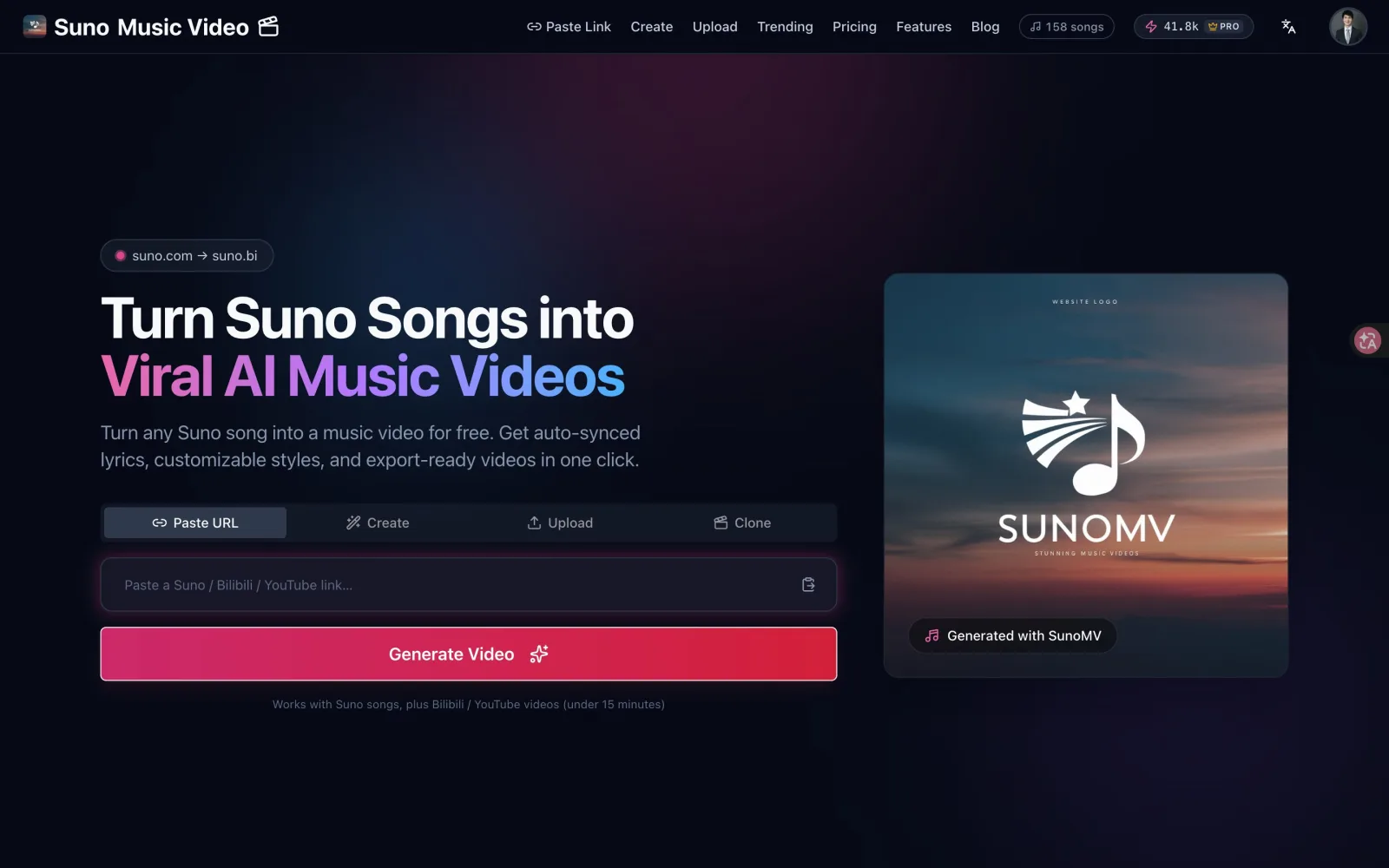
एक Suno गीत link paste करें (https://suno.com/song/xxx या short form https://suno.com/s/xxx) और SunoMV स्वचालित रूप से:

  • Short links को expand करता है और song ID को resolve करता है
  • Audio file, cover artwork, title, और artist name को extract करता है
  • Complete lyrics text को pull करता है
  • Timeline metadata को analyze करता है lyric synchronization के लिए तैयार करने के लिए

पूरी process seamless है। आपको कभी Suno और SunoMV के बीच switch करने या कोई files manually handle करने की आवश्यकता नहीं है।

AI-Driven Lyric Synchronization

Lyric sync एक music video का core experience है। SunoMV AI forced alignment का उपयोग करके हर lyric line को audio timeline पर precision के साथ map करता है। यह एक crude “display one line every few seconds” approach नहीं है — यह word-level synchronization है जहाँ subtitle point-by-point trace करता है कि singer क्या perform कर रहा है।

यह especially Karaoke subtitle mode में visible है: lyrics real time में word-by-word highlight होते हैं जैसे singer perform करता है, बिल्कुल KTV display की तरह।

Music-Aware AI Image Generation

SunoMV की AI lyric image system बस हर lyric line को एक image prompt के रूप में use नहीं करता। System गीत की overall structure और emotional arc को analyze करता है:

  • Intro / instrumental breaks: Atmospheric scene-setting imagery
  • Verses: Visual narrative lyric content को follow करती है
  • Chorus: Increased visual intensity, अधिक saturated colors
  • Outro: Imagery gradually resolve होती है, गीत के emotional trajectory को echoing करती है

पूरा Workflow, Step by Step

Step 1: Suno पर अपना गीत तैयार करें

यदि आपके पास अभी तक Suno गीत नहीं है, तो suno.com पर जाएँ और एक बनाएँ। MV quality को maximize करने के लिए कुछ tips:

  • Descriptive lyrics लिखें: AI image quality सीधे रूप से lyric specificity पर निर्भर करती है। “Walking through rain-soaked cobblestone streets” “I feel sad” से far better visuals generate करता है।
  • सुनिश्चित करें कि गीत publicly accessible है: SunoMV को link के via song data को fetch करने की जरूरत है
  • कोई भी Suno version काम करता है: SunoMV audio itself पर word-level forced alignment चलाता है, इसलिए older v3 / v4 tracks और latest v5 / v5.5 दोनों cleanly sync होते हैं

एक बार जब आपके पास गीत हो, गीत link को copy करें।

  1. suno.bi को open करें
  2. आप एक input field देखेंगे जिसमें animated gradient borders हैं: “Paste suno.com song link here…”
  3. अपना Suno link paste करें
  4. Pink “Generate Video” button को click करें या Enter दबाएँ
  5. यदि यह एक short link है, तो आप एक “Expanding short link…” toast notification देखेंगे
  6. एक बार successfully parsed होने के बाद, आप /song/[id] पर song editor में redirect होते हैं

Step 3: Song Editor Interface को Explore करें

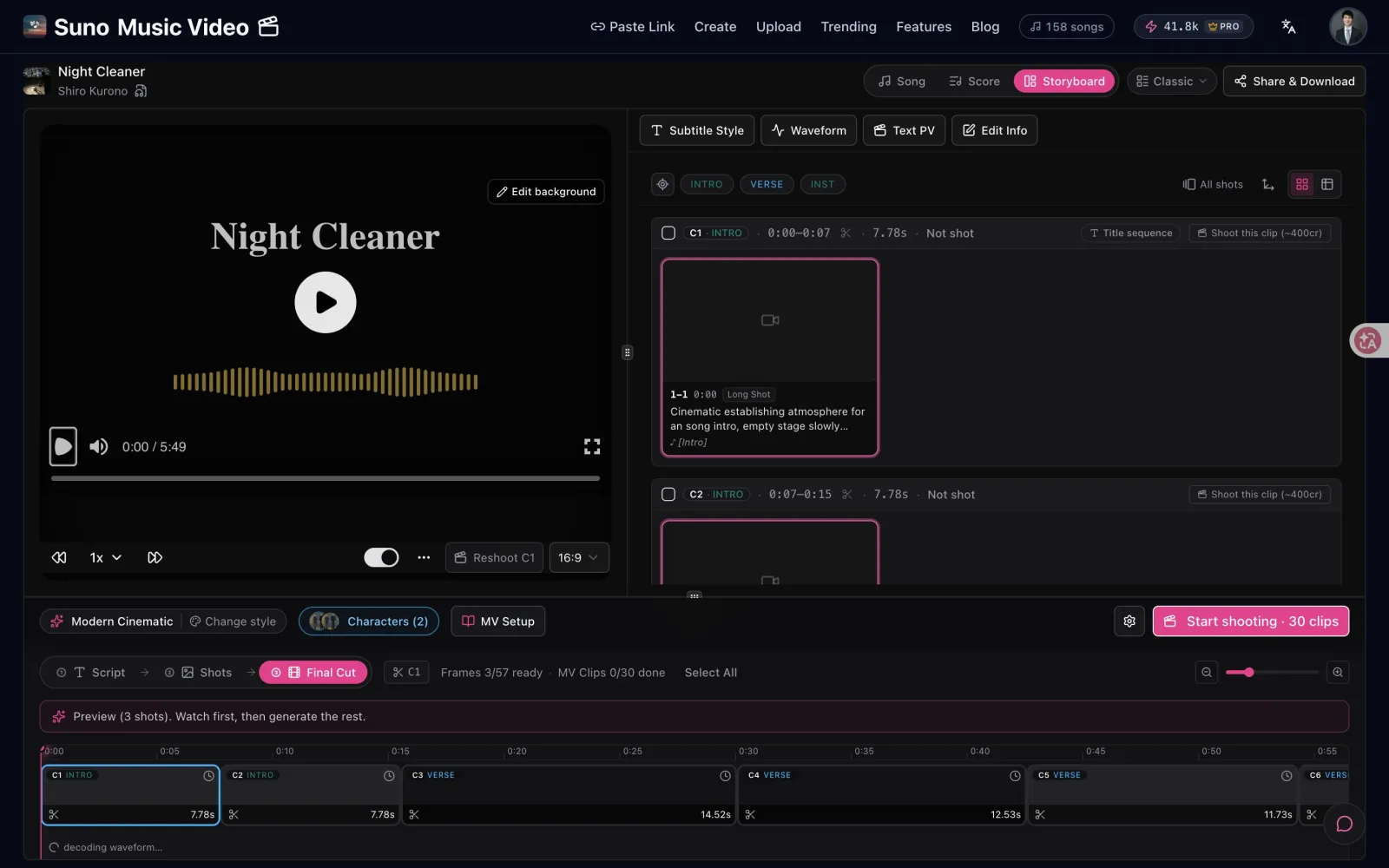
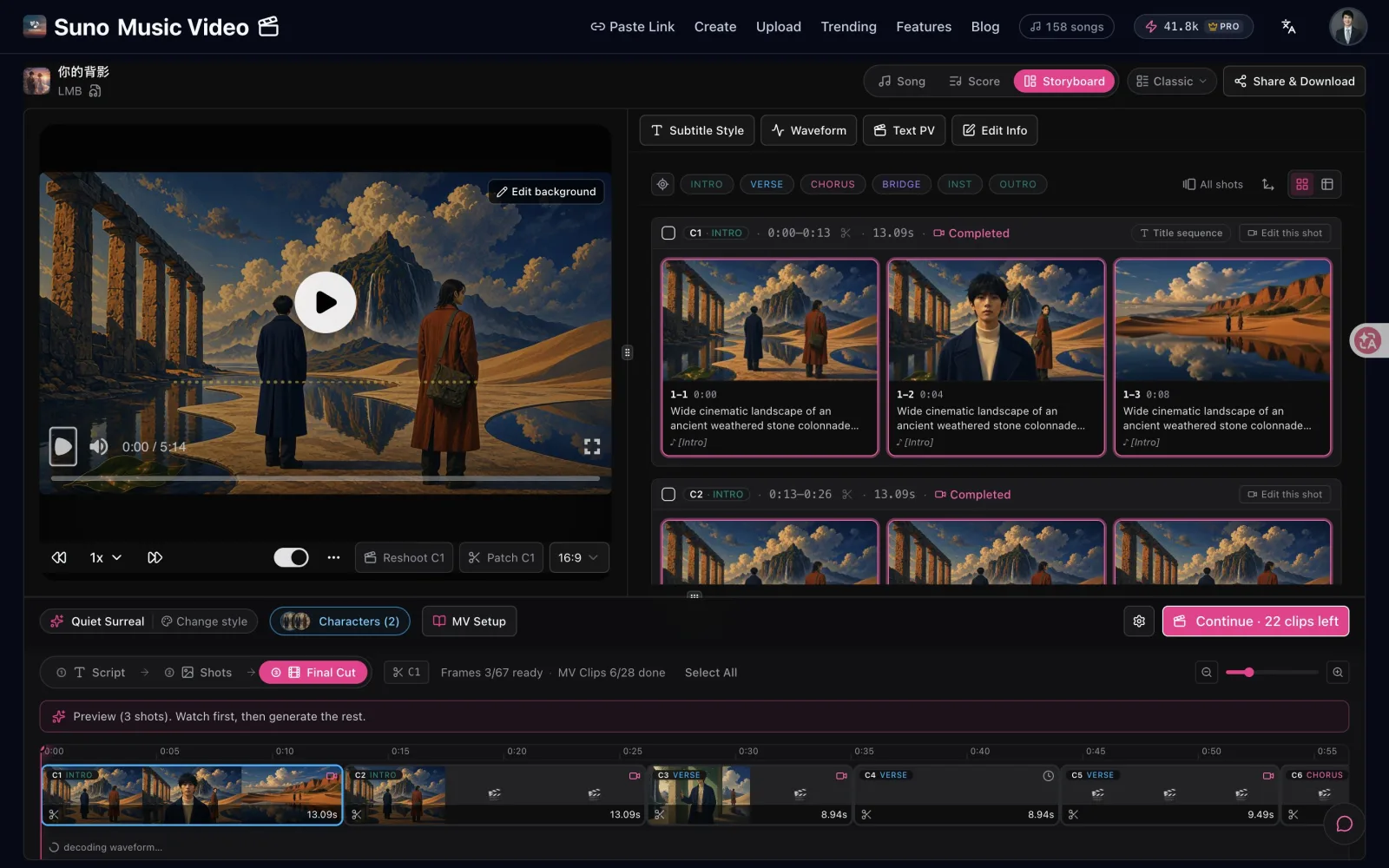
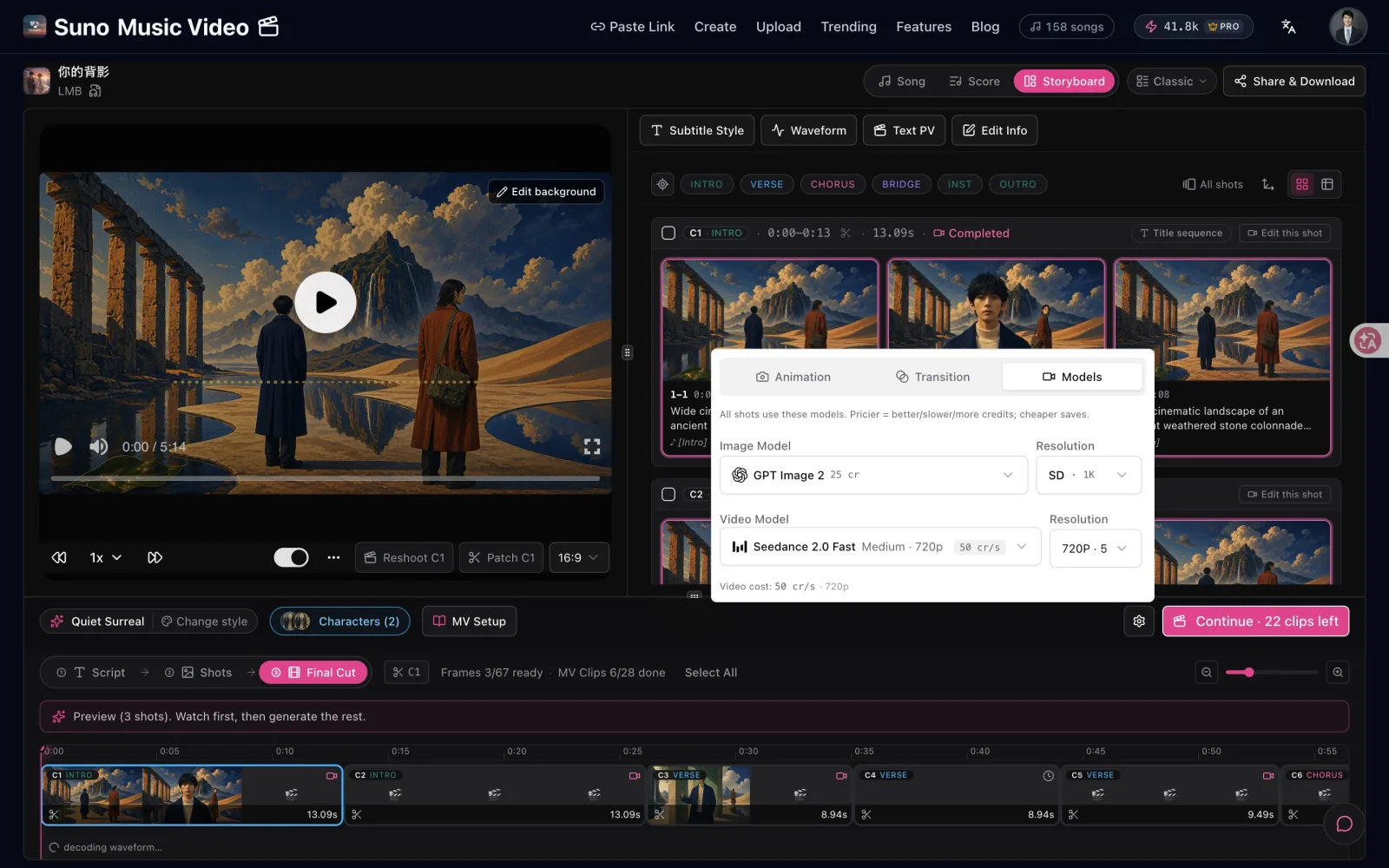
Song editor एक professional three-panel layout का उपयोग करता है:

Left Panel — Subtitles Panel:

  • Complete lyrics text को display करता है
  • Lyrics playback के दौरान auto-scroll और highlight होते हैं
  • किसी भी lyric line को click करके उस timestamp पर seek करें

Center Panel — Video Preview:

  • Selected subtitle style के साथ real-time MV preview
  • Playback controls (play, pause, seek)
  • Current visual composition को दिखाता है lyric images और subtitles के साथ

Right Panel — Timeline Panel:

  • Visual lyric timeline
  • AI lyric image management interface
  • Transition effect settings

Panel widths fully resizable हैं handles को drag करके, और आपकी layout preferences browser storage में persist होती हैं।

Step 4: एक Caption Style को Pick करें

SunoMV 18 built-in caption styles के साथ ship करता है, और यहाँ “why does their video look so professional” magic का बहुत कुछ live होता है। वे तीन families में fall करते हैं:

Clean & classicTransparent (black-outlined white text जो कभी visuals को block नहीं करता — नया default), Classic (semi-transparent subtitle bar), Subtle, Card (एक rounded white card, Notion-style), और Movie (serif cinematic subtitles)।

Viral short-form — TikTok, Reels, और YouTube Shorts के लिए engineered styles: Pop (एक orange pill जो active word को highlight करता है), Hormozi (पूरी-row yellow-block look जो Shorts पर dominates करता है), MrBeast (oversized white text red outline के साथ जो active word को larger पॉप करता है), Bold Punch, Faceless (standard faceless-channel caption), और Red / Cyan / Black Pill series।

Sing-alongKaraoke lyrics को word-by-word light up करता है जैसे singer perform करता है, और KTV Fill एक true left-to-right wipe fill करता है हर word पर, बिल्कुल KTV screen की तरह।

एक starter set free है; पूरी library Plus और Pro के साथ unlock होती है। हर style landscape और portrait दोनों में काम करता है — आप aspect ratio (16:9 / 9:16 / 1:1) को अलग से set करते हैं अपने target platform से match करने के लिए।

Step 5: AI Lyric Images को Generate करें

यह SunoMV की most powerful feature है। Workflow में several phases हैं:

Phase 1: एक Art Style चुनें

Lyric image panel के “Select Style” tab में, आप 7 preset styles के thumbnail previews देखेंगे। हर एक एक sample image और underlying base prompt को show करता है। वह pick करें जो आपके गीत के atmosphere से सर्वश्रेष्ठ match करता है।

आप “Custom” card को भी click कर सकते हैं अपना स्वयं का prompt enter करने के लिए। उदाहरण के लिए: "Watercolor illustration, dreamy pastel palette, ethereal forest scenes, soft diffused light, Studio Ghibli aesthetics"

Phase 2: Image Prompts को Generate करें

“Generate Prompt” को click करें और AI होगा:

  • आपके गीत के complete lyrics को read करता है
  • Hर line के semantics और emotion को understand करता है
  • इस understanding को आपके चुने हुए art style के साथ combine करता है
  • Hर lyric segment के लिए एक tailored image prompt produce करता है

ये prompts “Edit Preview” tab में दिखाई देते हैं। आप हर एक को review और edit कर सकते हैं — आपको अपने MV के हर frame पर granular control देते हुए।

Phase 3: Images को Generate करें

System स्वचालित रूप से पहली image generate करता है ताकि आप result को immediately preview कर सकें। एक बार satisfied होने के बाद, आपके पास दो options हैं:

  • एक-एक करके generate करें: Timeline पर एक specific segment को click करके individual generation को trigger करें
  • Batch generate करें: हर pending segment को generate करने के लिए एक click। आपकी subscription एक monthly generation allowance के साथ आती है जिसे आप AI images और AI video transitions में spend करते हैं — higher tiers को एक बड़ी allowance और faster batch generation मिलता है। यदि एक दिए गए महीने में आप run out हो जाते हैं, तो top-up credit packs stack होते हैं और कभी expire नहीं होते जब तक आपकी subscription active है। Free tier आपको subtitle music videos बनाने और subscribe करने से पहले पूरे editor को explore करने देता है।

अपने character को consistent रखें: Storyboard view को open करें हर scene को एक row के रूप में manage करने के लिए, और Protagonist Character Lock को turn on करें (plus एक reference image) ताकि एक ही singer या character हर shot के बजाय हर frame में different face में morph होने के बजाय carry हो।

Progress real time में timeline पर display होती है — green indicates completed, एक spinning animation indicates generation in progress।

Phase 4: Edit और Regenerate करें

एक particular image से unhappy हैं? कई adjustment paths available हैं:

  • Prompt को edit करें और regenerate करें: Segment के prompt को modify करें, फिर “Generate Image” को click करें
  • Regenerate button का उपयोग करें: Same prompt को रखें लेकिन एक नई visual variation generate करें (useful जब composition close हो लेकिन आप alternatives को explore करना चाहते हों)
  • AI models को switch करें: विभिन्न models विभिन्न aesthetics produce करते हैं। Seedream clean और vibrant को lean करता है, Flux fine detail को emphasize करता है, Nano Banana एक reference image से styles को consistent रखने में excels करता है

Step 6: Transition Effects को Add करें

Transitions lyric images को एक coherent visual flow में connect करते हैं।

Basic transitions (सभी users):

Timeline पर adjacent segments के हर pair के बीच, आप एक transition effect को select कर सकते हैं:

  • Fade: Most common choice — smooth opacity crossfade
  • Blur: Image blur out होती है फिर अगली एक blur से resolve होती है — एक dreamlike quality create करता है
  • None: Hard cut — high-tempo tracks के लिए सर्वश्रेष्ठ जहाँ fast switching energy से match करता है

आप transitions को individually per segment set कर सकते हैं या “Apply to All” के साथ एक click में। Duration 100ms से 1500ms तक adjustable है।

AI Video Transitions (Pro only):

यह true differentiator है। Pro users दो lyric images के बीच एक actual AI video clip generate कर सकते हैं — “city street” से “ocean sunset” तक एक fade के बजाय, AI एक smooth animated video create करता है जो दो scenes के बीच को visually morph करता है।

आप SunoMV के पूरे lineup से video model pick करते हैं — latest releases में Seedance 2.0, Kling v3 Pro, Google Veo 3.1, और Gemini Omni (strong cross-shot character consistency) शामिल हैं, साथ ही तेज़ और सस्ते options जैसे Veo 3.1 Lite, Happy Horse, और Wan — फिर motion को steer करने के लिए एक custom prompt लिखते हैं। System स्वचालित रूप से lyric segments के बीच time gap से recommended clip length को calculate करता है (8+ seconds का एक gap ~10-second clip use करता है, shorter gaps ~5 seconds use करते हैं)।

Step 7: Metadata को Customize करें और Export करें

Export से पहले final adjustments:

Edit video info (Plus/Pro):

  • एक custom cover image upload करें
  • Display किए गए title और artist name को change करें
  • Genre/description tag को modify करें
  • Lyric images के बिना segments के लिए एक background image set करें

Export:

  • Free: 720p with watermark
  • Plus: 1080p HD, कोई watermark नहीं
  • Pro: 2K, कोई watermark नहीं

Genre द्वारा Real-World Configurations

Example 1: Japanese Anime-Style Pop

  • Art style: Makoto Shinkai
  • AI model: Seedream 5 (fast, strong anime aesthetic)
  • Subtitle style: Subtle (beautiful visuals को obstruct नहीं करता)
  • Transitions: Fade, 600ms
  • Target platform: Bilibili, YouTube

Example 2: Chinese Traditional / Folk

  • Art style: Chinese Ink
  • AI model: Flux 2 (strong ink wash texture rendering)
  • Subtitle style: Classic
  • Transitions: Blur, 1000ms
  • Target platform: Douyin, Xiaohongshu

Example 3: English Rap / Hip-Hop

  • Art style: Realistic Photo
  • AI model: Seedream 4.5
  • Subtitle style: Hormozi (portrait, bold text)
  • Transitions: None (hard cuts rhythm से match करते हैं)
  • Target platform: TikTok, Instagram Reels

Example 4: Lo-fi / Healing Instrumental

  • Art style: Cozy Healing
  • AI model: Nano Banana 2 + reference image upload
  • Subtitle style: Subtle
  • Transitions: Fade, 1200ms (slow, gentle flow)
  • Target platform: Xiaohongshu, YouTube

Frequently Asked Questions

कौन से Suno गीत supported हैं?

सभी publicly accessible Suno गीत, older v3 / v3.5 tracks से लेकर latest v5 और v5.5 तक। Private songs को public या unlisted में set करना होगा SunoMV access करने से पहले।

MV generation कितना लंबा लेता है?

  • Subtitle-only MV (कोई AI images नहीं): Preview real time में render होता है एक बार जब आप editor को enter करते हैं
  • AI lyric images के साथ: Batch generating सभी segments typically 2-5 minutes लेता है
  • AI video transitions के साथ: हर transition video 60-120 seconds generation time add करता है

क्या मैं अपनी स्वयं की audio files का उपयोग कर सकता हूँ?

हाँ। SunoMV अब तीन creation modes हैं: Paste URL (किसी भी Suno गीत link को एक MV में बदलें — सभी के लिए open), Upload (अपनी MP3, WAV, या video file लाएँ और AI auto-transcribes और syncs lyrics), और Create (एक original गीत AI के साथ generate करें और auto-build MV)। आप अब Suno links तक limited नहीं हैं।

क्या फ्री टियर videos पर एक watermark है?

हाँ, एक small SunoMV watermark शामिल है। Plus और Pro subscribers watermark-free export करते हैं।

AI image और video credits कैसे काम करते हैं?

प्रत्येक paid plan एक monthly generation allowance के साथ आता है (एक rolling 30-day cycle पर) जिसे आप AI lyric images और AI video transitions पर spend करते हैं — higher tiers को एक बड़ी allowance और faster batch generation मिलता है। यदि एक दिए गए महीने में आप run out हो जाते हैं, तो top-up credit packs stack होते हैं और कभी expire नहीं होते जब तक आपकी subscription active है। Free tier आपको subtitle music videos बनाने देता है और पूरे editor को explore करता है subscribe करने से पहले।

क्या मैं पहले से ही generated images को edit कर सकता हूँ?

हाँ। Edit Preview panel में कोई भी segment select करें, prompt को modify करें, और regenerate करें। Pro users के पास भी “Regenerate” function तक access है जो prompt को unchanged रखता है लेकिन एक नई visual variation produce करता है।

SunoMV homepage एक Trending section feature करता है जो community members द्वारा create किए गए popular MVs को showcase करता है, language (Chinese, English, और अधिक) द्वारा organized। इसे use करें:

  • Creative inspiration को find करने के लिए देखते हुए कि अन्य क्या styles use कर रहे हैं
  • विभिन्न languages में trending content को browse करें
  • पूरे result को view करने के लिए किसी भी showcase को click करें

Creating शुरू करें

अपने best Suno गीत को एक video में बदलें। आपको सब कुछ एक link और five minutes चाहिए।

suno.bi को visit करें, अपना पहला Suno link paste करें, और song से music video तक जाने का AI magic को experience करें।