/icon.png)
How to Lip Sync a Suno Music Video Without Reshooting

How to Lip Sync a Suno Music Video Without Reshooting
The chorus is done. The face is on camera. You hit play and the mouth is late, lazy, or chewing the lyric instead of singing it. Wide shots look fine. B-roll looks fine. The one clip people will stare at — the sung close-up — is the one that breaks the illusion.
That is a shot problem, not a whole-video problem. Lip sync on a Suno music video is a pass over the faces that actually sing. It is not a second generation of the MV, and it is not something you run on every clip in the board.
Most tutorials still sell the long path: export the song, isolate vocals, hop through three other tools, then stitch it in an editor. This guide is the short path on SunoMV: shoot the close-up, confirm the take is 15 seconds or under with audio, run Precise lip-sync at 50 credits, wait a few minutes. No reshoot. No fifteen editors.
Table of Contents
- Why mouths only matter on close-up sung lines
- Precise lip-sync is not a reshoot
- How to add Precise lip-sync on suno.bi
- Why the button is off: 15 seconds, audio, and Shift-select
- Choosing lip-sync, reshoot, or leaving the shot
- Frequently asked questions
- From a sung close-up to a finished MV
Why mouths only matter on close-up sung lines
Core answer: Precise lip-sync is worth running only when a face is on camera and a lyric is on the vocal. Wide shots, cutaways, and instrumental bars do not need a matching mouth. Mark the handful of chorus close-ups. Leave the rest of the board alone.
Suno users generate on the order of seven million songs a day. Distribution slots did not grow with that supply. The clip that gets watched is usually one sung face, not a fifteen-clip tour of every storyboard card. If the mouth is wrong on that face, the rest of the MV does not save it.
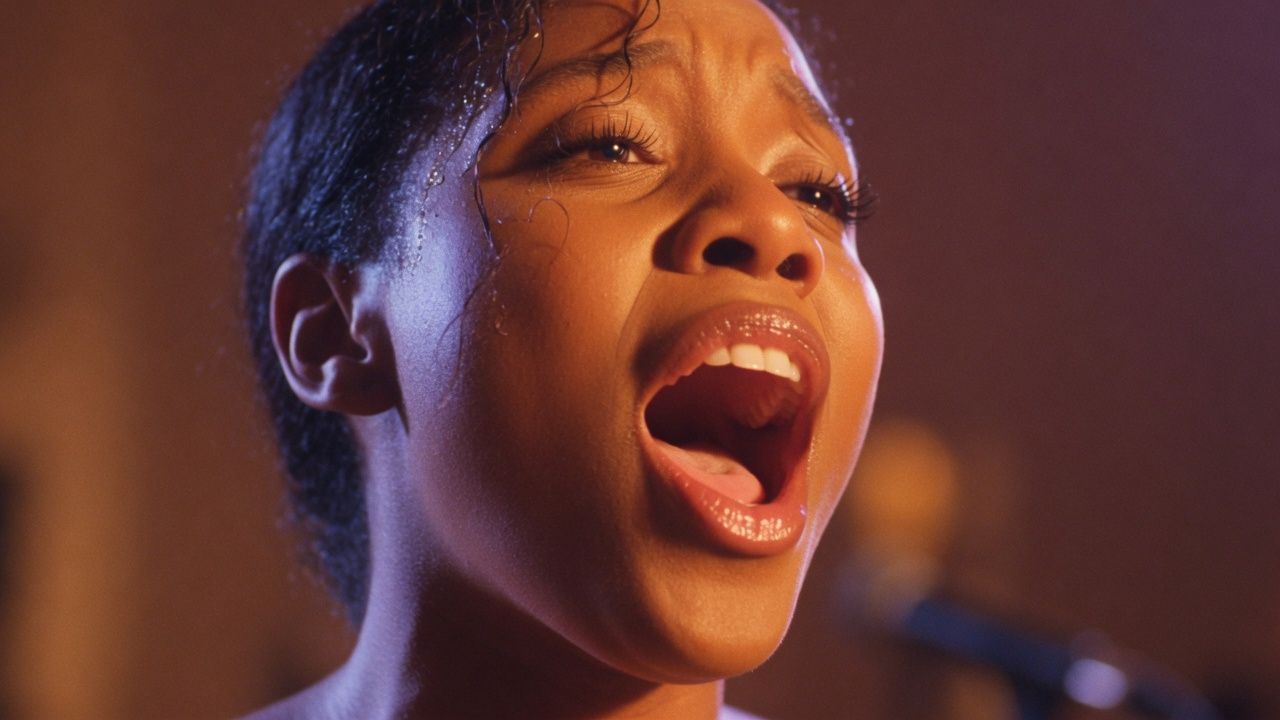
Look at the frame below. This is the kind of shot Precise lip-sync is for — a face filling the frame, mouth open on the lyric.
Illustration: a close-up sung line — the only shot Precise lip-sync is built for.
Wyzowl’s 2026 video marketing survey found 91% of businesses now use video, and 82% of marketers still report a good ROI from it. Viewers pause on faces. They do not pause on empty streets. Spending 50 credits on a wide night shot does not buy you a mouth that was never in frame.
Practical rule: If you cannot see a mouth singing, skip Precise lip-sync. Close-ups of a face are the ones worth this.
The same rule is why you should not “just run it on all 15 clips.” That is how people burn a stack of 50-credit passes on B-roll. The Suno to Video flow still builds the MV. Precise lip-sync is the last pass on the faces that carry the hook.
Precise lip-sync is not a reshoot
Core answer: Precise lip-sync costs a fixed 50 credits per clip. It aligns the singer’s mouth to the song on the video you already have. The original take stays. The player prefers the lipsynced file when it is ready. It does not reshoot, and it does not need Singer performance turned on first.
Singer performance is a different job. That switch changes the picture on the next shoot — a sing-to-camera performance instead of a story frame. After a clip is already completed, Precise lip-sync does not ask you to flip it. Mixing the two is how people hit the reshoot button when they only wanted a mouth.
Reshoot price follows the video model, duration, and resolution. A 9-second 480P reshoot can be 205 credits. Precise lip-sync is always 50. The two CTAs sit next to each other on purpose. They are not the same purchase.
The still below is the take you keep: a chest-up sung performance you already shot. Precise lip-sync works on that file. It does not replace it.
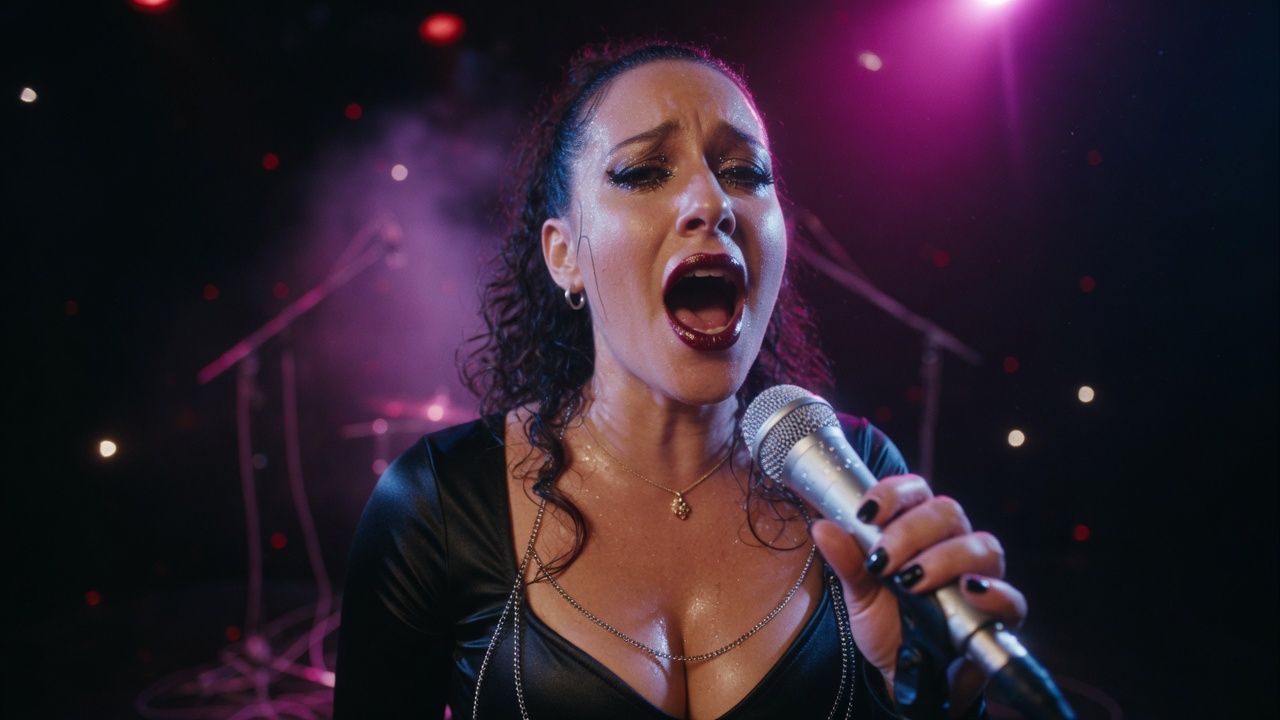
Illustration: the existing sung take — Precise lip-sync adds the mouth, it does not replace the picture.
Lyric captions and waveform overlays in export are a third thing. Turning those overlays off does not spend credits and does not change the mouth take. If the words on screen look late, that is captions, not Precise lip-sync.
Practical rule: Read the credit number on the button. 50 is Precise lip-sync. A three-digit reshoot price is a new picture. Do not treat them as the same pass.
Need the MV first? Start from the song-to-music-video workflow. The short product page is how to lip-sync a Suno music video. Precise lip-sync assumes a completed clip. It will not invent the frame.
How to add Precise lip-sync on suno.bi
Core answer: Shoot the close-up, confirm the finished video is 15 seconds or under and has audio, select the sung faces, run Precise lip-sync (~50 cr), and wait about two to three minutes. On the web, Shift-select several clips on the timeline, storyboard, or score. You do not open a separate editor for every line.
Here is the six-step path I would run on a chorus hook:
- Shoot the close-up first. Precise lip-sync needs a completed clip. If the take is not shot yet, shoot it. Lip-sync will not invent the frame.
- Check audio and the 15-second file. The gate reads the finished video duration, not the shorter lyric range on the timeline. No audio, or over 15 seconds, keeps the button off.
- Select the sung faces. One clip in the editor, or Shift-select several on the web timeline, storyboard, or score. Skip wide shots and instrumental bars.
- Run Precise lip-sync (50 credits). This is not a reshoot. The original take stays. Singer performance is a different picture change — you do not turn it on first.
- Wait about two to three minutes. Failed runs refund the 50 credits. There is no separate resolution picker on this pass. A 480P close-up stays 480P.
- Export as usual. The player prefers the lipsynced file when it is ready. Lyric and waveform overlays in export are unrelated and cost nothing.
When the pass lands, the close-up should look like the frame below — same picture, mouth on the lyric.
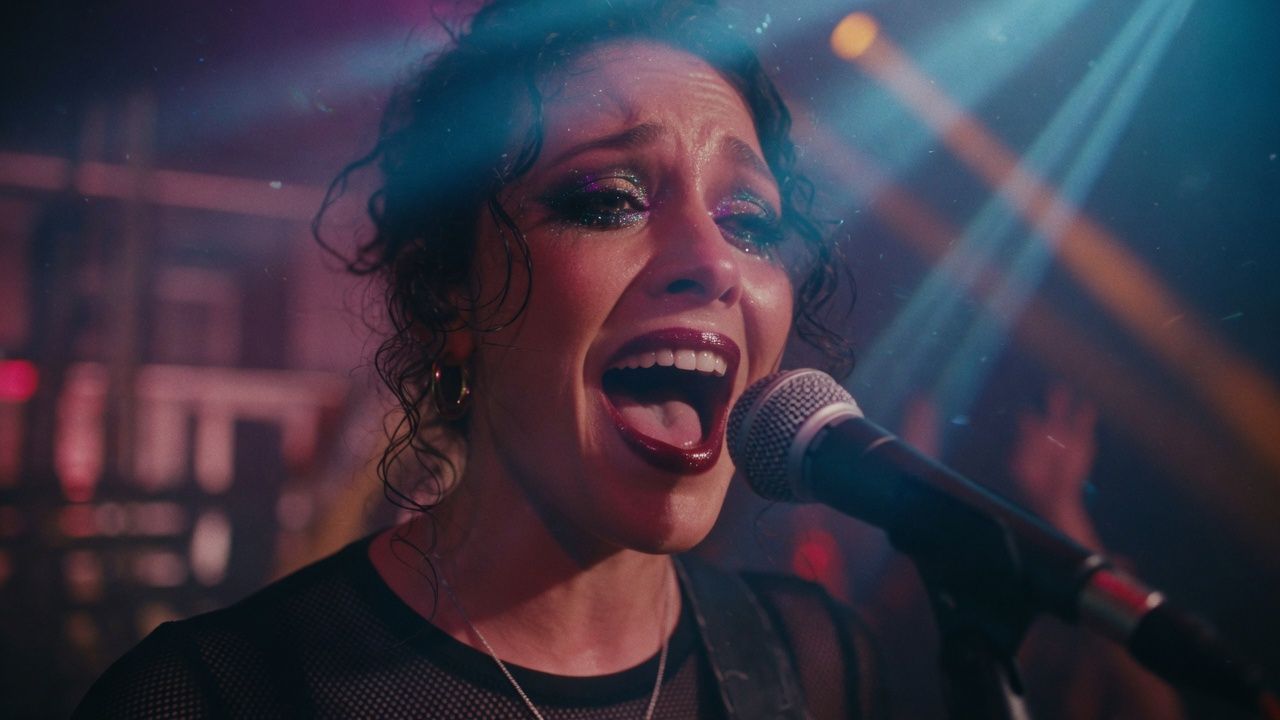
Illustration: the same sung close-up after the mouth pass — original take kept, lipsynced file preferred in playback.
If you want a second opinion on “only the sung faces,” the video below walks a multi-tool version of the same idea: generate the scenes, then lip-sync the shots where a mouth is actually visible, and leave B-roll alone.
https://www.youtube.com/embed/lHQvI_WqzSg
Video: YouTube · How to Make AI Music Videos With Natural Lip Sync — close-ups first, skip the B-roll.
On suno.bi you do not leave the project to do that. Open SunoMV, mark the faces, run the 50-credit pass. For shot language around those close-ups, the shot-scale and camera-motion method is the craft layer underneath.
Practical rule: Do the chorus close-ups first. If those mouths are right, stop. Extra clips are optional, not a quota.
Why the button is off: 15 seconds, audio, and Shift-select
Core answer: Precise lip-sync stays off when the clip is not shot yet, when the finished video is longer than 15 seconds, or when there is no audio. The 15-second cap uses the completed file duration, even if the lyric line on the timeline looks shorter. A finished clip never asks you to turn on Singer performance first.
The disabled hint should match the real reason:
- Not shot yet — shoot this clip first. Precise lip-sync shows up once the take is ready.
- Over 15 seconds — this take is over 15 seconds, so precise lip-sync isn’t available — even if the lyric line looks shorter. Keep the video at 15 seconds or less.
- No audio — this song has no audio track, so precise lip-sync can’t run. Re-import the song with audio first.
The 15-second cap is a hard gate. This article does not tell you to raise it. Split a long chorus, or keep the close-up as its own clip. A nine-second hook that looks short in the lyric lane can still be a 16-second file. Trust the file.
Look at the wide night street below. That is a story shot. It does not need a mouth pass. If you want a new picture for a story beat, that is Singer performance plus a reshoot, not Precise lip-sync.
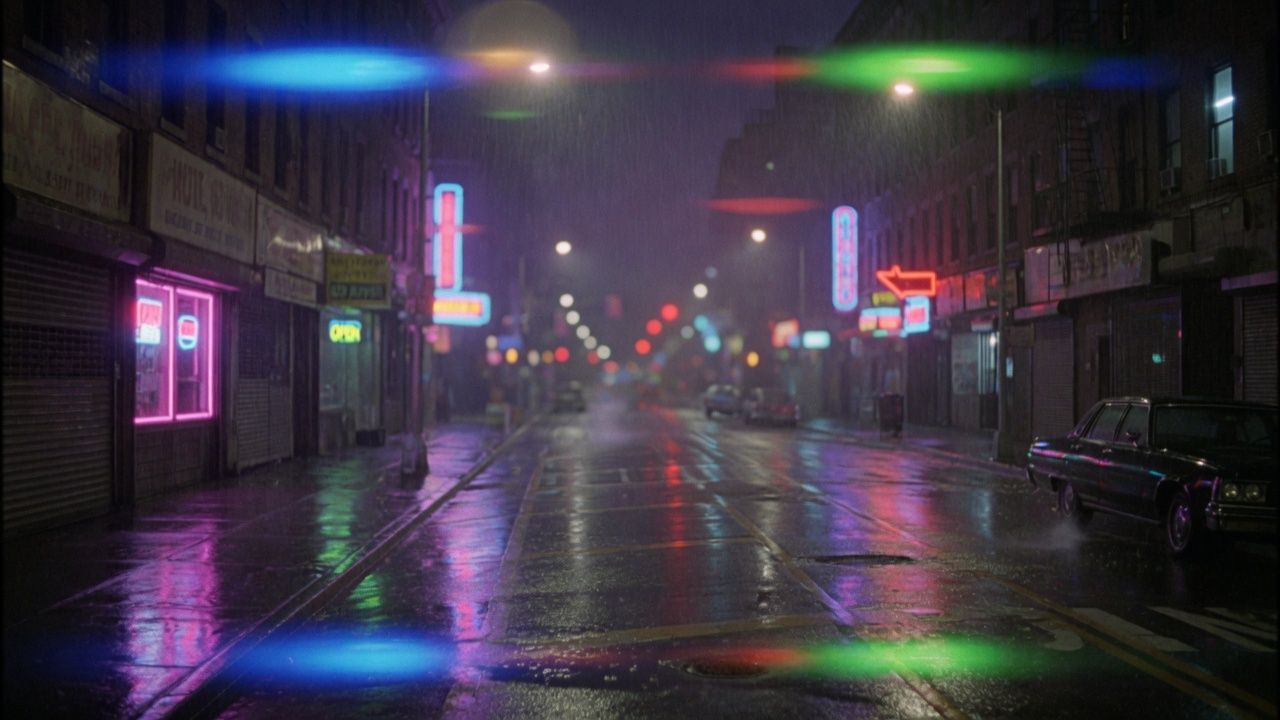
Illustration: a wide story shot — skip Precise lip-sync; mouths are not in frame.
On the web you can Shift-select on the timeline, the storyboard, or the score, then right-click Precise lip-sync. That is the batch path. You do not open fifteen editors to mark a handful of sung faces.
Decision filter: Ask what the disabled hint actually says. Not shot, too long, or no audio. If the clip is already completed, “turn on Singer performance” is the wrong reason.
H3 Max is not a substitute for this pass. That model is documented as something that does not do lip-sync — see MiniMax H3 Max. If you picked H3 Max for the picture, you still run Precise lip-sync on the close-ups afterward.
Choosing lip-sync, reshoot, or leaving the shot
Core answer: Use Precise lip-sync when the picture is already right and only the mouth is wrong. Reshoot when you want a new picture. Leave the shot when there is no face singing. The credit number on the button tells you which job you are buying.
A cinematic MV still is not automatically a lip-sync candidate. The frame below could be a chorus close-up (run the 50-credit pass) or a mood plate (leave it). The test is whether a mouth is on camera.

Product still: a finished MV frame — run Precise lip-sync only if a sung face is in close-up.
| Job | What changes | Credits | Best for |
|---|---|---|---|
| Precise lip-sync | Mouth on the current take | Always 50 | Close-up sung lines, 15s or under, with audio |
| Reshoot | New picture | Model × duration × resolution (example: 9s 480P can be 205) | Wrong framing, wrong performance, want Singer performance |
| Leave it | Nothing | 0 | Wide shots, B-roll, instrumental bars |
Use this when you are staring at two buttons and a disabled hint:
- Picture good, mouth late → Precise lip-sync.
- Picture wrong → reshoot. Optionally turn on Singer performance if you want a sing-to-camera frame.
- No face → leave it.
- Button off → fix the real gate (shoot / shorten / add audio), then come back.
Runway’s lip-sync overview makes the same split in different words: a mouth pass is not the same as generating a new performance. Magic Hour’s how-to is the export-and-reupload version of that pass. On suno.bi you stay inside the clip you already shot.
Practical rule: If you wanted a new picture, do not buy the 50-credit mouth pass and hope. If you only wanted the mouth, do not pay a reshoot.
Craft around those choices lives in the music video production workflow. For a first MV from a song, use how to make a music video from a song with AI, then come back here for the faces.
Frequently asked questions
What is Precise lip-sync on a Suno music video?
Precise lip-sync adds mouth movement to a clip you already shot so the face matches the vocal. It costs 50 credits, does not reshoot, and does not change the rest of the picture. Use it on close-up sung lines, not on every shot. Build the MV first with Suno to Video if you do not have clips yet.
How do I lip-sync a Suno music video in SunoMV?
Shoot the close-up first. Confirm the finished video is 15 seconds or under and has audio. Open the clip, or Shift-select several on the web timeline, storyboard, or score, and run Precise lip-sync. Wait about two to three minutes. The original take stays; the player prefers the lipsynced file when it is ready.
Why only close-up sung lines, not every clip?
Mouths only matter when you can see them singing. Wide shots, cutaways, and instrumental bars waste 50 credits and still look like B-roll. Pick the faces that carry the lyric — usually a handful of chorus close-ups, not the whole board.
When is Precise lip-sync disabled?
When the clip is not shot yet, when the finished video is longer than 15 seconds, or when there is no audio. A completed clip never asks you to turn on Singer performance first. If the timeline range looks short but the file is long, the 15-second gate still uses the finished video duration. Shot language around those close-ups is in the music video production workflow.
Do I need Singer performance on before lip-sync?
No. After the clip is shot, Precise lip-sync does not require Singer performance. That switch changes the picture on the next shoot. Mixing the two is the usual way people burn the wrong credits.
Do export overlays (lyrics or waveform) affect lip-sync?
No. Lyric and waveform overlays in the export dialog are unrelated to Precise lip-sync. Turning those overlays off does not spend credits and does not change the mouth take.
From a sung close-up to a finished MV
You do not need a second studio and a vocal stem export. You need a completed close-up, a file at 15 seconds or under, and the 50-credit pass on the faces that sing.
A practical workflow, start to ship:
- Build the MV with Suno to Video (or paste the song into suno.bi).
- Mark the chorus close-ups. Skip wide shots.
- Confirm each chosen clip is shot, has audio, and is 15 seconds or under.
- Shift-select on the web, run Precise lip-sync, wait two to three minutes.
- Export. Leave lyric overlays as a separate decision.
The people who get this right do not ask how to lip-sync an entire music video. They ask which close-up is worth 50 credits.
Open the MV and lip-sync the close-ups:
- 🎬 SunoMV: https://suno.bi
- 🎥 Suno to Video: https://suno.bi/features/suno-to-video
- ✨ How to make a music video from a song: full workflow
- 👄 Lip-sync how-to (short): https://suno.bi/features/how-to-lip-sync-suno-music-video
—— SunoMV Team
Popular guides
More in this series
- Suno Arrangement in Practice: Lock Song Structure with Timeline Section Tags So Your MV Storyboard Has Something to Stand On (2026)
- Christmas AI Music Video Planning: The Q4 Holiday Production Calendar (2026)
- SunoMV Music Video Production Workflow: A Complete Professional Guide from Concept to Final Cut
- Negative Space Wins: The "Breathing Room" Editing Method for AI Music Videos (2026 SunoMV Method)
- The Recurring Visual Motif Method for Music Videos (2026)