/icon.png)

How to Make a Music Video With AI From Any Song (2026 Guide)

To make a music video from a song with AI, upload the song, pick a look, and let the AI sync the lyrics and draw one picture for each line. You check a free preview first. Then you draw the rest of the song, film the scenes you want moving, and export a 9:16 or 16:9 video. In SunoMV the song can be anything: your own recording, an MP3 from any AI music tool, or a video file.
It is not one click. You see every step, and each step shows its price before it runs. Below: what you can make from one song, the four steps with real screens, what it costs, and the mistakes that waste credits.
Start with any song
Upload an MP3, WAV, M4A or a video file, up to 500 MB. Paste the lyrics for accurate subtitles.
Upload my song🎁 Sign up free and get 100 credits — enough for your first storyboard preview.
“Hero”, made in SunoMV: 30 seconds of the chorus. Storyboard pictures with camera motion and synced lyrics.
What you can make from one song
Before you upload, decide how much of the video should actually move. That one choice decides the look and most of the cost.
| Type | What’s on screen | Good for | Cost |
|---|---|---|---|
| Lyric video | Full-screen animated lyrics over a background | Songs where the words matter, fan uploads | No video credits |
| Storyboard video | One picture per lyric line, with camera motion | Most releases, verses, slow songs | Pictures: 8–35 credits each |
| Filmed scenes | Real AI video clips for the scenes you pick | Hooks, choruses, the moment people share | Video: priced per second |
Most people mix them: film the chorus, keep the verses as pictures, and use lyric scenes for the bridge. You can see each look on its own page: lyric video, music visualizer, story music video.
Rule of thumb: Film the 2–3 scenes people will remember. Everything else can be a picture with motion, and nobody scrolling a feed will notice.
Step by step: from song file to music video
Step 1: Upload your song
Open the Upload tab on suno.bi and drop in your file: MP3, WAV, M4A, MP4 or MOV, up to 500 MB.
- Paste the lyrics if you have them. Left blank, the AI transcribes the lyrics for you, but sung words get misheard. Pasted lyrics give accurate subtitles and save you fixing lines later.
- Instrumental? Turn on “No sung lyrics”. The music is split into sections (intro, groove, break, outro) so you can make a picture or clip for each part.
- Song made on Suno? Paste the Suno link instead of uploading. See how to make a music video for a Suno song.
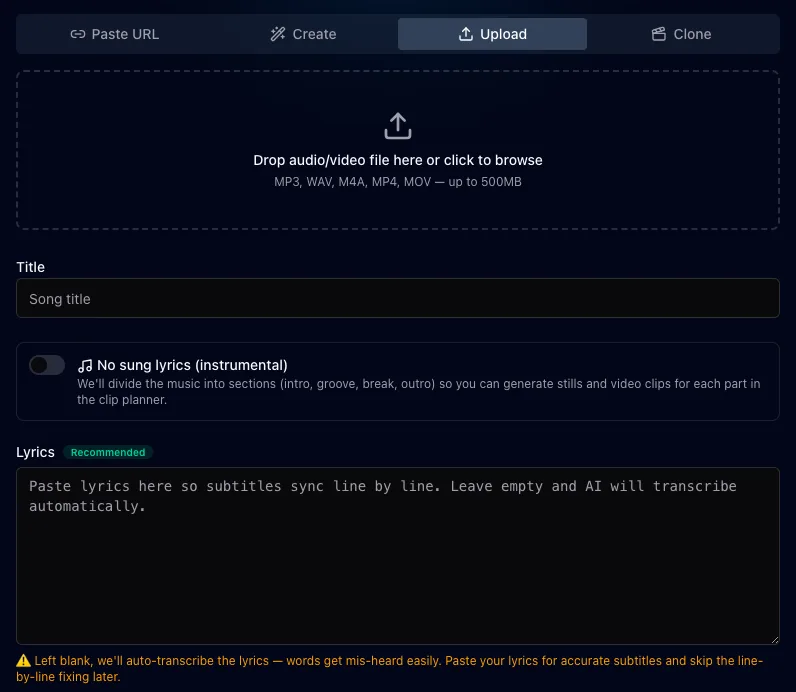
Real screen: the Upload tab.
Step 2: Pick a look
Choose one of 36 visual styles, from cinematic photo to anime to Chinese ink. Want the same singer in every scene? Add a face photo and the lead keeps the same face throughout.
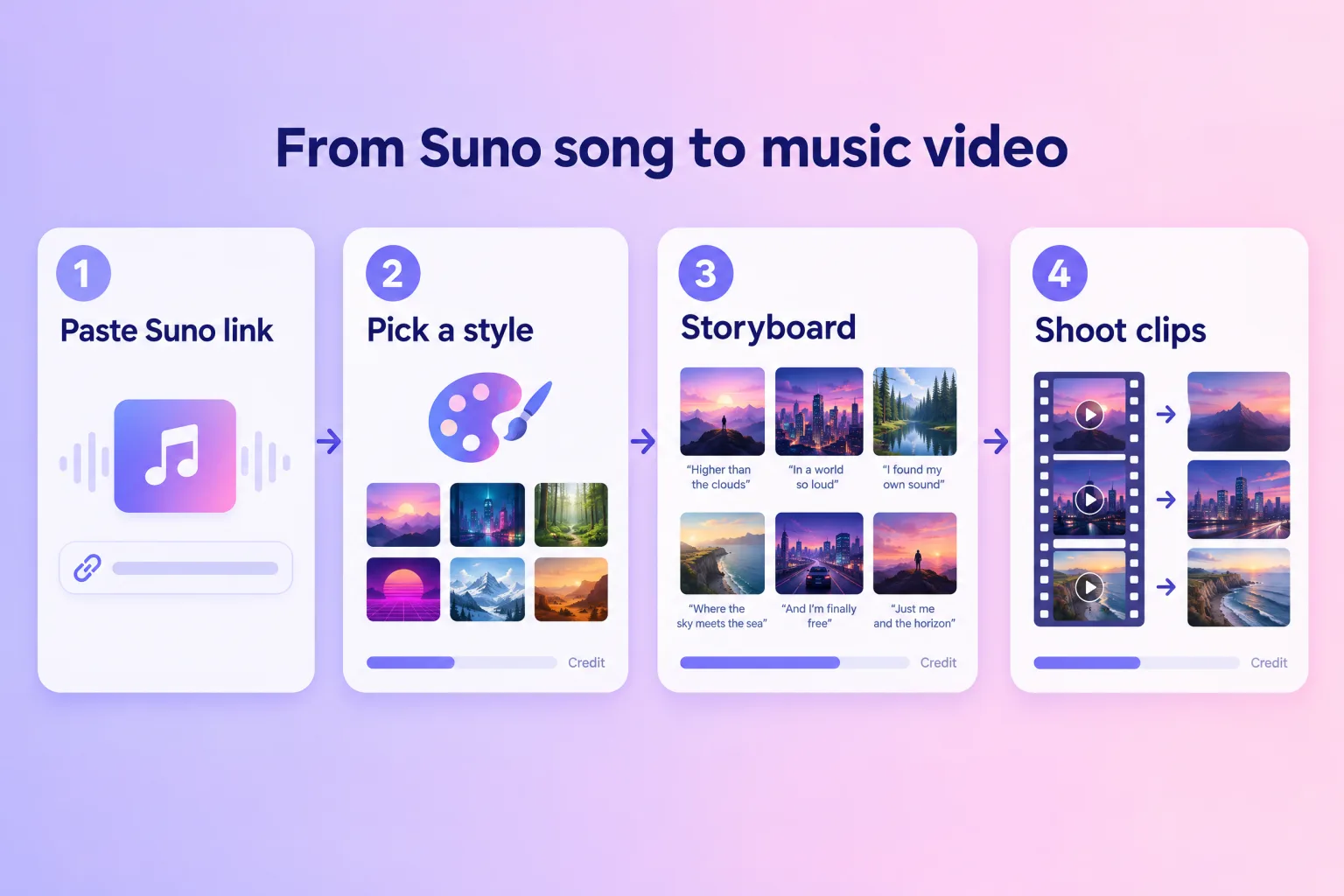
Illustration of the four steps.
Step 3: Check the preview
The first run draws only a few pictures, so you can judge the look before you spend credits on the whole song. Like it? Draw the rest. Don’t like it? Change the style or edit the picture description for that line and draw again.
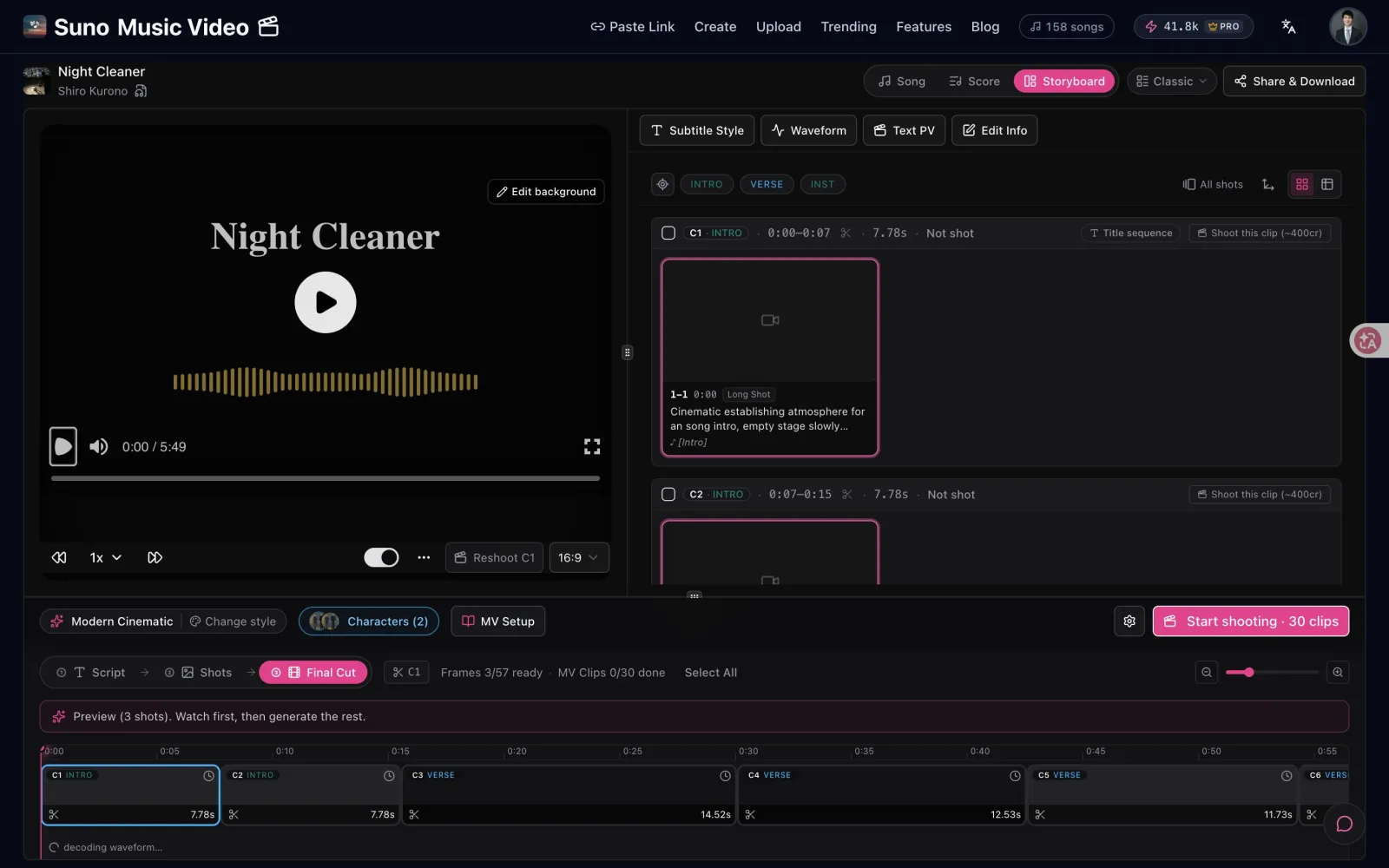
Real screen: the first run is a preview, and every scene shows its price.
Step 4: Film the scenes you want, then export
On the timeline, film the scenes you want moving. The rest play as pictures with camera motion or as lyric scenes, neither of which uses video credits. Pick a subtitle style, then export 9:16 for TikTok, Reels and Shorts or 16:9 for YouTube.
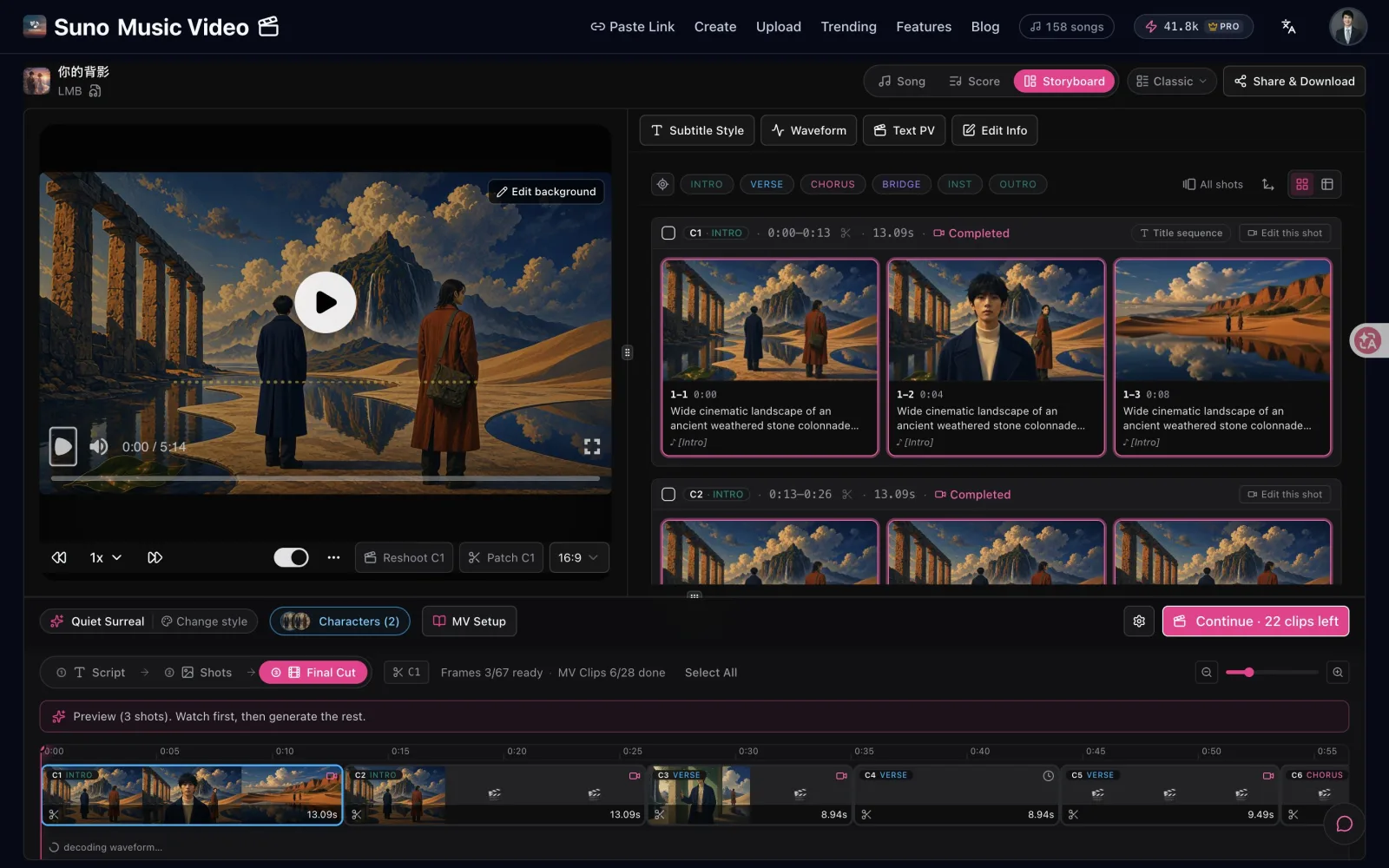
Real screen: filmed scenes on the timeline.
What it costs
The price is on the button before you press it.
| Item | Price |
|---|---|
| Add a song & preview | Free |
| New account | 100 free credits, enough for your first preview pictures |
| Pictures | 8–35 credits each, depending on the image model |
| Video scenes | Priced per second; the default model is 50 credits a second at 720p |
| Lyric scenes & pictures with motion | No video credits |
| Export | Paid plans. Pro includes 5,000 credits a month, 1080p, no watermark |
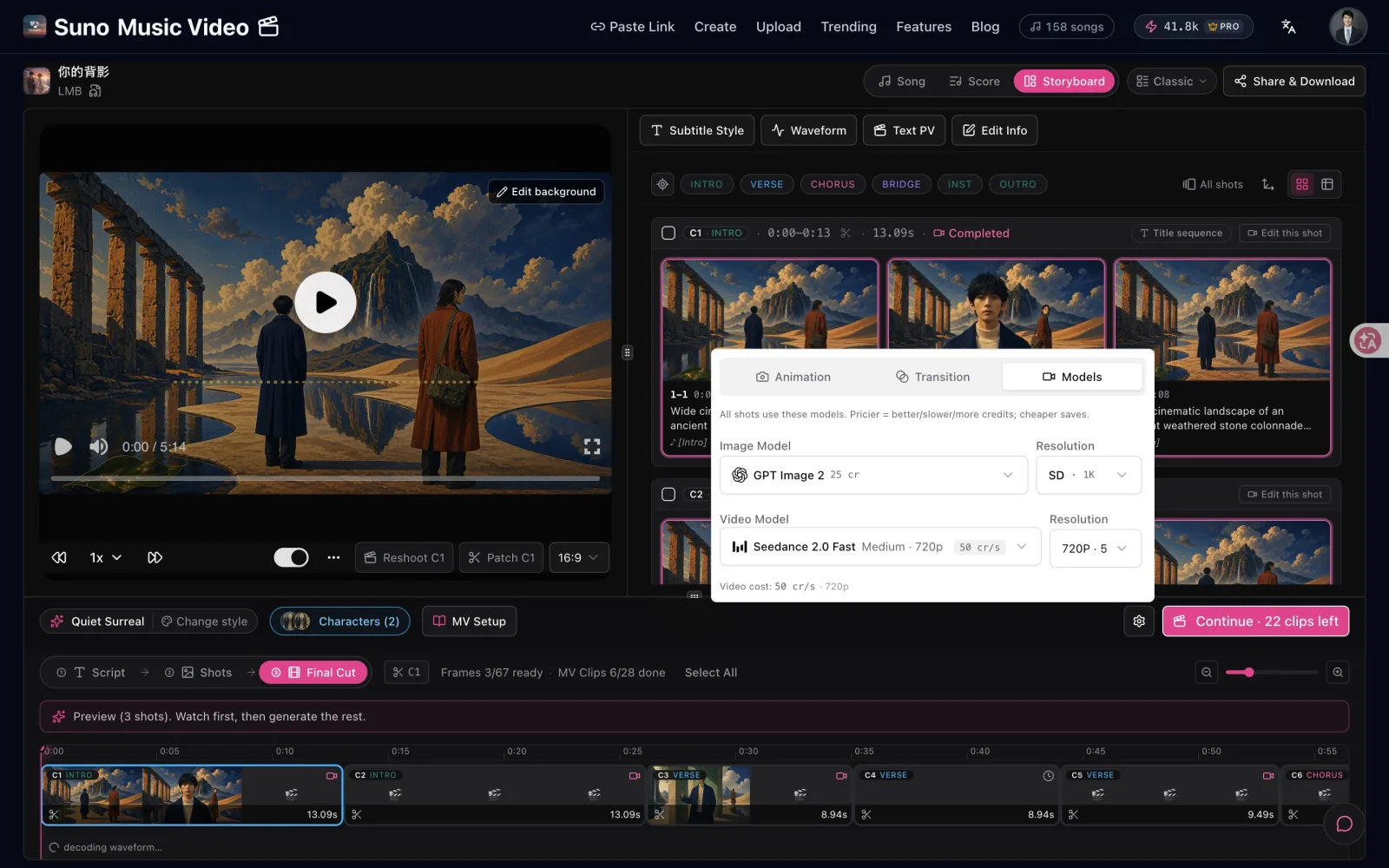
Real screen: every model shows its price.
Common mistakes (and how to avoid them)
- Expecting one click. You get a storyboard and a preview first, then decide what to film. Plan to spend a few minutes choosing, not zero.
- Filming every scene. Video is the expensive part. Film the hook and chorus; keep the verses as pictures.
- Skipping the lyrics box. Automatic transcription mishears sung words. Paste the lyrics and the subtitles line up from the start.
- Unreadable subtitles. Busy chorus pictures swallow the text. Watch once on mute; if a line is hard to read, pick a subtitle style with an outline or a bar.
- One orientation only. A 16:9 video gets cropped on phones. Export a 9:16 version for TikTok, Reels and Shorts too.
- The same look for three minutes. Change the picture style or camera motion for the chorus so the video lifts when the song does.
Rule of thumb: If the first draft feels flat and you can’t say why, check the chorus. Usually the song peaks there and the video doesn’t.
Quick checklist before you post
- Right type? Lyric video, storyboard or filmed scenes, matched to the song.
- Readable? On mute, every subtitle reads easily.
- Does it lift? Verses calm, chorus bigger.
- Both shapes? 16:9 for YouTube, 9:16 for Shorts, TikTok and Reels.
- Your rights? The song is yours, or you have permission to use it.
Comparing tools first? See the best AI music video makers. Want to know more about subtitles? Read the AI lyric video guide.
FAQ
Can I use a song that isn’t from Suno?
Yes. Upload any audio or video file: your own recording, a track from another AI music tool, or a demo. You are responsible for having the rights to the song. The safest choice is a song you made or own.
Do I need lyrics?
Only if you want subtitles. Paste them for the most accurate sync, or leave the box empty and the AI transcribes them. Instrumentals work too: turn on “No sung lyrics” and the music is split into sections.
Which files work, and how big can they be?
MP3, WAV, M4A, MP4 and MOV, up to 500 MB.
How long does it take?
The preview pictures are usually ready within a few minutes. Drawing the whole song and filming scenes takes longer, scene by scene, and you decide how much of that you want.
Is it free?
Adding a song and previewing are free. New accounts get 100 free credits for the first pictures. Exporting the video needs a paid plan; Pro includes 5,000 credits a month, 1080p and no watermark.
Can I edit the video afterwards?
Yes. You can redraw any picture inside SunoMV, and the export is a standard MP4 you can open in any video editor to add an intro, a logo or extra effects.
Make your first one
You need a song and a few minutes to look at the preview. Upload it, pick a look, and decide which scenes deserve to move.
Start with any song
Upload an MP3, WAV, M4A or a video file, up to 500 MB. Paste the lyrics for accurate subtitles.
Upload my song🎁 Sign up free and get 100 credits — enough for your first storyboard preview.
—— The SunoMV Team
Popular guides
More in this series
- Suno Only Gives You a Short Clip — Here's How to Turn It Into a Full-Length Music Video (2026 Guide)
- Make a Music Video With Zero Editing Skills: The Complete Audio-to-Finished-MV Guide (2026)
- How to Make a Music Video with AI (2026 Complete Guide): 3 Paths + Zero-Experience Start
- Can Suno Make Music Videos? (2026 Answer + Free Workaround)
- Turn a Suno Song into a Free MP4 — Not a Static Cover