
Meta Muse Video Prompt Guide: 10 Tips + Copy-Paste Templates

Meta Muse Video is the newest row in the SunoMV video picker, and it behaves differently from the Kling and Seedance rows next to it. It caps a shot at 10 seconds, renders 720p only, offers just two frame shapes, and always ships with its own audio track. A prompt written for a 15-second, multi-ratio model will not paste cleanly onto it.
People searching Muse Video prompt have usually already picked the model. What they need is a string that fits a 10-second shot, and a way to cut a music video out of shots that short.
This guide is that. If you are still choosing a row, the Kling 4.0 Flash prompt guide covers the cheap 20-second row, and the Kling 4.0 prompt guide covers the 30-second, 1080p one. The prompt shape below is shared; the limits are not.
Table of Contents
- What Muse Video actually accepts
- The slot order that survives a paste
- 10 copy-paste tips
- 5 music-video templates
- When Muse Video is the wrong row
- FAQ
- Copy, pick Muse Video, export the shot
What Muse Video actually accepts
Muse Video went live in SunoMV on 2026-11-05. It appears in the picker as Meta Muse Video and covers four tasks: text-to-video, image-to-video, start and end frames, and reference-to-video.
| Fact | Meta Muse Video |
|---|---|
| Shot length | Up to 10 seconds (the SunoMV picker offers 5–10) |
| Resolution | 720p only |
| Aspect ratios | 16:9 landscape or 9:16 portrait |
| Start + end frame | Yes |
| Reference stills | Up to 4 |
| Audio | Own audio track, cannot be turned off |
| Price in SunoMV | 48 credits per second |
Three of those rows change how you write.
Ten seconds is the whole shot. A 45-second chorus is five shots, not one. Plan the cut first and write one beat per prompt.
Only two frame shapes. Ask for 1:1 or 4:3 and you get portrait back. Pick 16:9 or 9:16 in the picker and put the same one at the front of the prompt so the composition is built for it.
The audio comes with the clip. For a music video you will lay your Suno song over it anyway, so mute the generated track in the edit. It also means you can describe a sound in the prompt — rain, a door, footsteps — and get it, which is useful for a verse without music.
The shots from this row are described, filed and sampled on the Muse Video page; use it to see a real clip before spending credits.
The slot order that survives a paste
Muse Video reads the prompt as one ordered block. Camera first and subject last gives you a shot that drifts. Use this order every time:
[ratio + duration] → [subject, exactly one] → [action, one verb] → [scene + light] → [camera move + lens] → [sound, optional] → [grade]Written out, a chorus shot looks like this:
9:16, 8s. A drummer in a denim jacket, early 30s. He hits the snare, head down. Garage rehearsal room, one bare bulb, dust in the air. Handheld push-in, 35mm, shallow depth of field. Snare cracks, room echo. Warm tungsten grade, film grain.Five things make that string work: one subject, one action, one light source, one camera instruction with a lens, and one sound. Everything else is decoration. Two subjects in one shot is the most common reason a clip comes back with a face melt.
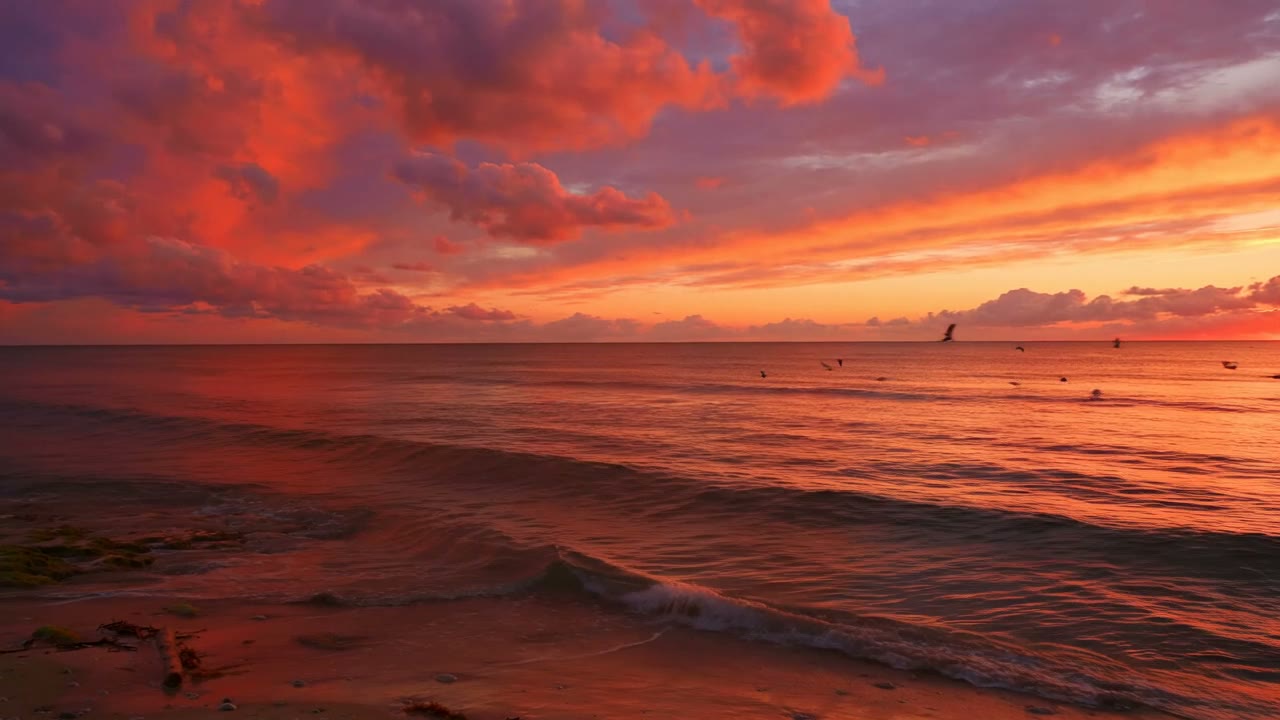
A sample frame from the Muse Video row: one subject, one light source.
Practical rule: if a shot comes back wrong, count the subjects first. Nine times out of ten the prompt described two people, or described the face instead of the motion.
10 copy-paste tips
1. Put ratio and duration first
9:16, 8s. at the front keeps the model from composing a widescreen frame you then have to crop. Vertical for TikTok, Reels and Shorts; 16:9 for YouTube. There is no 1:1 and no 21:9 on this row.
2. Write one beat per 10 seconds
“She walks in, sits down, orders, checks her phone and leaves” crushes five beats into mush. Pick one beat per clip and let the edit carry the rest. A three-minute song at 8 seconds a shot is about 22 clips; plan against the beat map before writing prompts.
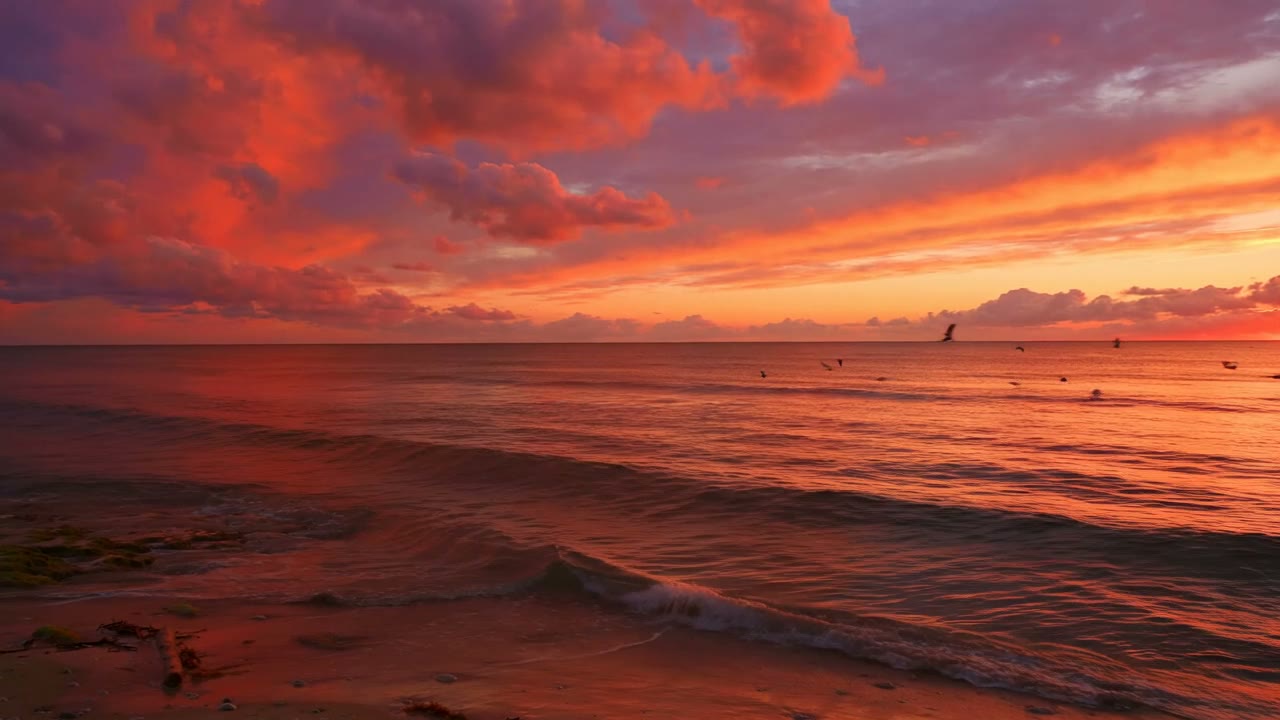
Another sample from the same row. Compare how much of the frame is light and how little is detail.
3. One verb, present tense
She turns. He runs. Rain falls. Past tense and stacked verbs produce the drifting, half-finished motion that reads as AI.
4. Name a light source, not a mood
“Low sun through a window, dust in the beam” renders. “Dreamy, cinematic, beautiful” does not. Light is the cheapest quality upgrade in the prompt and the one most often left out.
5. Use the reference image for the face, the prompt for the move
On image-to-video and reference-to-video, the still decides who is in frame; the prompt should only describe motion, camera, light and sound. Re-describing the clothes in text makes the model rebuild the face from words and lose the likeness.
6. Use all four references on purpose
Reference-to-video takes up to four stills. Give it the performer, the location, a prop and a style frame, not four photos of the same face. The prompt then says how they combine in one sentence.
7. Use the end frame to land a cut
Start-and-end-frame mode lets you decide where the shot finishes. Use it for a match cut — the last frame of shot A is the first frame of shot B — instead of hoping the model lands on the pose you need.
8. Describe the sound you want, or say none
Because the audio track cannot be switched off, the model will invent one. Either describe it (rain on a tin roof, distant traffic) or write quiet room tone so you do not get a surprise score. Mute it under your song in the edit.
9. Ask for 720p honestly
The row renders 720p. Prompts stuffed with “8K, ultra-sharp, hyperreal” push toward over-detailed texture that the encode smears. “Soft edges, shallow depth of field, 35mm” survives 720p far better.
Composition and light carry a 720p frame; fine texture does not.
Practical rule: write for the resolution you will render. 720p rewards composition and light; it punishes detail for its own sake.
10. Reuse the seed phrase, not the whole prompt
When a shot works, keep its scene, light and grade sentence and swap only the action. That gives you a sequence that reads as one continuous world instead of 20 unrelated clips.
Practical rule: an end frame is a promise about where the shot finishes. Make it a frame you have already seen.
5 music-video templates
Each template is a full prompt you can paste into the SunoMV picker after choosing Meta Muse Video. Change the bracketed parts.
Template 1 — Verse, slow push
9:16, 8s. [A man in a grey coat], late 20s. He stands still, breath visible. Empty parking garage at dawn, cold fluorescent light from above. Slow push-in, 50mm, shallow depth of field. Quiet room tone, a distant drip. Cool teal grade, light grain.Template 2 — Chorus, walk toward camera
9:16, 10s. [A woman in a red raincoat]. She walks toward camera without stopping. Wet city street at night, sodium lamps and neon reflections. Slow dolly-in at chest height, 35mm. Rain, footsteps on wet asphalt. Warm amber grade, film grain.Template 3 — Instrumental break, landscape
16:9, 10s. No people. A single road through dry hills, heat shimmer. Late afternoon sun raking across the asphalt. Static wide shot, 24mm, deep focus. Wind and cicadas. Faded warm grade, slight vignette.Template 4 — Bridge, close-up detail
9:16, 6s. [A hand] turning a brass doorknob. Dark hallway, one warm bulb overhead. Macro lens, very shallow depth of field, slow rotation. A soft metal click. Desaturated grade with warm highlight.Template 5 — Outro, match cut with an end frame
16:9, 10s. [Two figures] sitting on a rooftop ledge, seen from behind. City skyline at blue hour, windows lighting up one by one. Slow crane pull-back, 28mm. Distant traffic. Blue-violet grade, clean digital. End on the skyline with no figures in frame.For the end-frame route, upload the last still of this shot as the start frame of the next one in the SunoMV music video maker and the cut lands where you planned it. If the lyrics come before the pictures, start from the lyric generator and write the shots against the finished lines.
Pick the last frame you like and use it as the next shot’s start frame.
When Muse Video is the wrong row
Muse Video is the right row when a shot needs its own sound, or when you want a start and end frame on a short clip. It is the wrong row when:
- You need more than 10 seconds in one take. A single continuous take longer than 10 seconds is not available. The Kling 4.0 family goes to 20 or 30 seconds.
- You need 1080p. A hero shot for a thumbnail, or a clip that will be cropped and re-framed, needs a row with a 1080p option.
- You need a square or ultra-wide frame. There is no 1:1 and no 21:9 here.
- You are making 20 or more shots on a tight budget. At 48 credits per second a 10-second shot is 480 credits. A cheaper row for the filler shots, and Muse Video for the shots that need sound, is the better split.
Practical rule: decide the row per shot, not per project. Most music videos are mostly cheap rows with a few hero shots on the model that can do what the shot needs.
FAQ
Is Muse Video the same as Kling or Seedance? No. It is a separate model from Meta with its own limits: 10 seconds, 720p, 16:9 or 9:16, and a built-in audio track. The prompt format in this guide is the shared shape that works across all three; the numbers are Muse-specific.
Can I turn the audio off? Not at generation time. Mute the track in the edit and lay your song over it.
Can I use an end frame? Yes. Start-and-end-frame is one of the four tasks. Use it for match cuts between shots.
How many reference images can I use? Up to four stills.
Why does my prompt come back with warped faces? Usually two subjects, or a re-described face on image-to-video. Reduce to one subject and let the reference still carry the likeness.
Which ratio should I pick? 9:16 for TikTok, Reels and Shorts, 16:9 for YouTube. Any other ratio is collapsed to one of the two.
Copy, pick Muse Video, export the shot
Copy one template, swap the bracketed parts, choose Meta Muse Video in the SunoMV picker, set the duration to 8 seconds and the ratio to 9:16 for social. Export the shot, drop it on the beat, then repeat with tip 10 — same scene, same light, same grade, new action.
If you have not built the beat map yet, start with the AI music video creation guide and come back here for the shot prompts. For the prompt-writing habits underneath all of these rows, the Suno prompt tips guide is the pillar for this topic.
Made in SunoMV · real exports
See what a song turns into
Every sample below is an untouched SunoMV export: 3 AI storyboard shots, one AI-filmed clip, then the lyrics. Each one uses a different caption style and frame size.
Popular guides
More in this series
- Gemini Omni 1.1 Prompt Guide: 10 Tips + Copy-Paste Templates
- Kling 4.0 Flash Prompt Guide: 10 Tips + Copy-Paste Templates
- Veo 3.1 Lite Prompt Guide: 10 Tips + Copy-Paste Templates
- Veo 3.1 Fast Prompt Guide: 10 Tips + Copy-Paste Templates
- Gemini Omni 1.2 Flash Music Video Prompts: 8 Copy-Paste Templates