/icon.png)

The Complete Guide to AI Music Video Creation with SunoMV: From Storyboard to Final Cut

Why every Suno song deserves a real music video
Platform algorithms reward video. A brilliant Suno track shared as an audio link gets almost no traction on TikTok, Reels, or YouTube Shorts. The pattern is consistent: music with visuals earns several times the engagement of audio-only posts.
But most musicians did not sign up to become video editors. If you are a Greg-type creator — you write and release songs, and you refuse to burn evenings learning timelines — you need a path that is fast by default, with depth only when you want it.
SunoMV is built for that. You stay a musician. The tool does the video part.
The musician path: two clicks, then ship
You do not have to wire every shot. For most songs, the whole first pass is:
- Pick Style — open the style popup, choose a look that fits the track (cinematic, anime, kinetic poster, photo realism, and more).
- Batch Generate — hit the button at the top-right of the timeline. SunoMV builds a scene for every lyric line and fills the storyboard in one go.
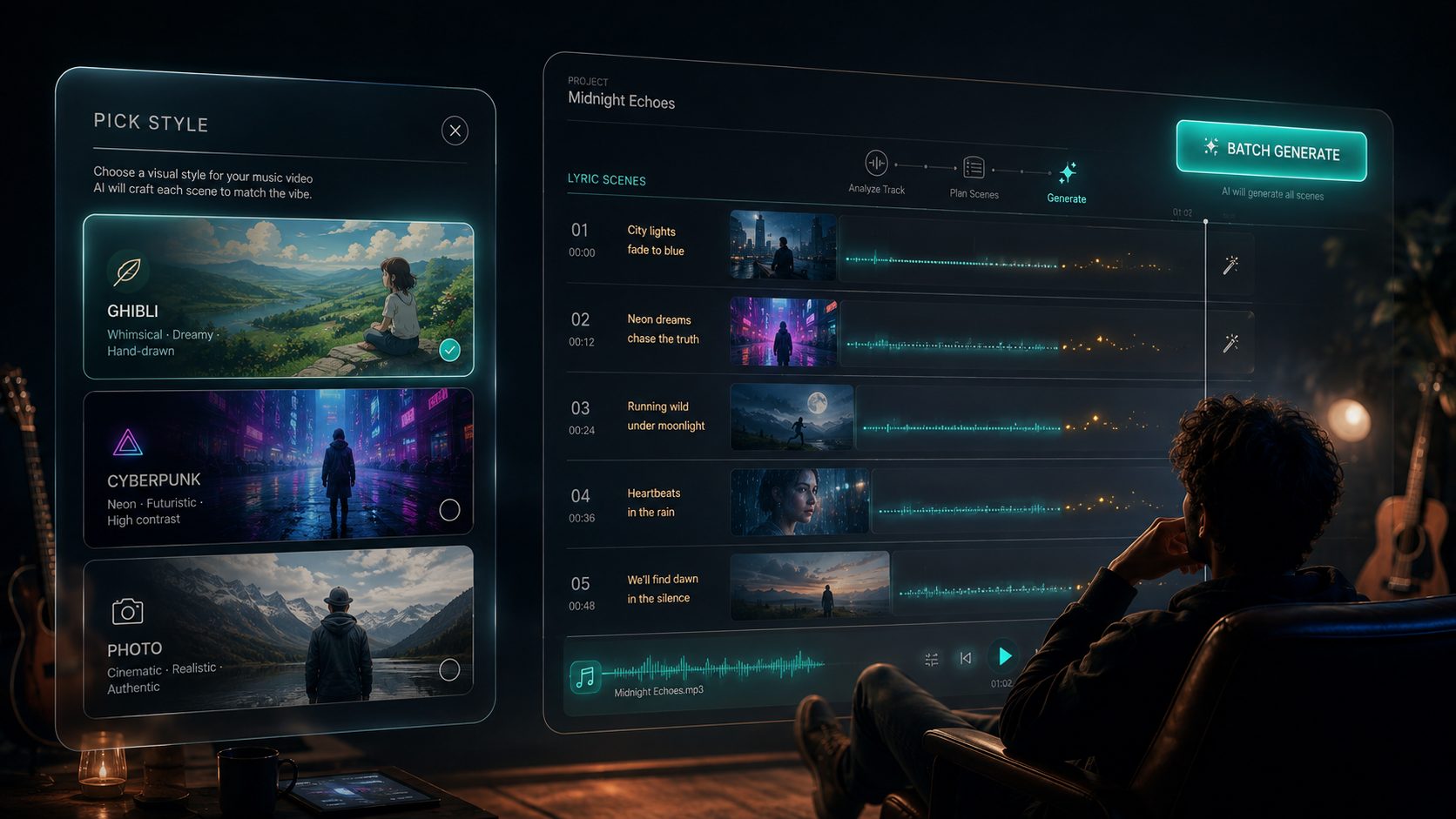
Pick Style, then Batch Generate. That is the whole first pass for most songs.
Practical rule: If you only have 15 minutes, stop after style + batch generate + export with gentle camera motion. Ship a finished cut. Come back later to animate only the chorus.
Want more control? Click any scene, clip, or lyric row — each opens a dialog for regenerate, re-prompt, lock a face, change the model, or re-time that beat. Easy mode and director mode share the same project. Nothing is lost when you go deeper.
From storyboard to final cut: how SunoMV actually works
A music video here comes together in two stages.
- The storyboard — every line of your song becomes its own cinematic scene (a still image, locked to your lyrics and timed to the beat). This is your visual script.
- The final cut — those scenes are set in motion, so the video flows as real footage instead of a slideshow.
Get this mental model and everything else clicks. The storyboard is cheap and fast to perfect; the final cut is where your stills start moving. Most of the “wait, why is mine a slideshow?” confusion lives in the gap between the two.
Your three-view workstation
Open any song and you get three ways to work on it, all sharing the same project:
- Score — a lyric-first view, one line per row with its scene thumbnail and timing. Best for fine-tuning scene by scene.
- Storyboard — a visual grid of every scene. Generate, batch, and direct here.
- AI Director Assistant (early access) — a chat-based director: “make the chorus feel euphoric,” “scene 12 is the rooftop at dawn.” We are actively iterating this “make an MV with your voice” path. It may still hit bugs — please try it and reply with feedback when something feels off. Your notes help us ship the next cut.
Stage 1 — The storyboard: a cinematic scene for every lyric
The AI reads each line, understands mood and meaning, and creates a unique scene for it. Rainy streets stay rainy. A bright chorus warms up. These are not random decorations — they are a visual narrative grown from your song.
Direct it like a filmmaker (only when you want to)
Every scene is yours to direct. Per shot you can set shot size, camera angle, camera movement, and editing rhythm. Set these where it matters and leave the rest on auto — you never start from a blank frame.
Keep your characters consistent
Upload a reference photo and SunoMV locks that face across scenes. You can lock up to three characters at once, plus scene references so a recurring location stays coherent from verse to chorus.
Pick your image engine
SunoMV supports a roster of image models you can switch per shot, including:
- Seedream 5 Lite / Pro and Seedream 4.5 — fast, crisp 2K/4K-ready stills
- Nano Banana 2 / Pro — natural faces and strong detail
- GPT Image 2 — best when a shot needs readable on-screen text
- Flux 2, Qwen Image 3.0 / 2.1 Turbo / 2.1 Pro, Grok Imagine, Ideogram V4, Muse Image — more looks when you want variety
Most support reference images, so locked characters stay consistent across engines.
Preview samples, then generate the full board
SunoMV can show sample scenes first so you judge the look before you spend credits on the full song. Happy with the direction? Run Batch Generate and every lyric gets its scene. You can still reopen any single shot’s dialog to regenerate or re-direct it.
Practical rule: Sample a few scenes before you batch the whole track. Style mistakes are cheap early and expensive after a full storyboard.
Stage 2 — The final cut: making it move
By default, a finished export is still scenes with gentle camera motion — a polished Ken-Burns-style cut. That is a legitimate, beautiful format. It is not the same as AI video footage.
To get real motion, run the video / motion pass after your scenes look right. One click can animate the whole set, or you can animate only the moments that earn it — intro, chorus, drop, ending.
If you ever exported and thought “this is just a slideshow,” the storyboard was done but the motion pass had not run yet.
Choose your motion engine (2026 roster)
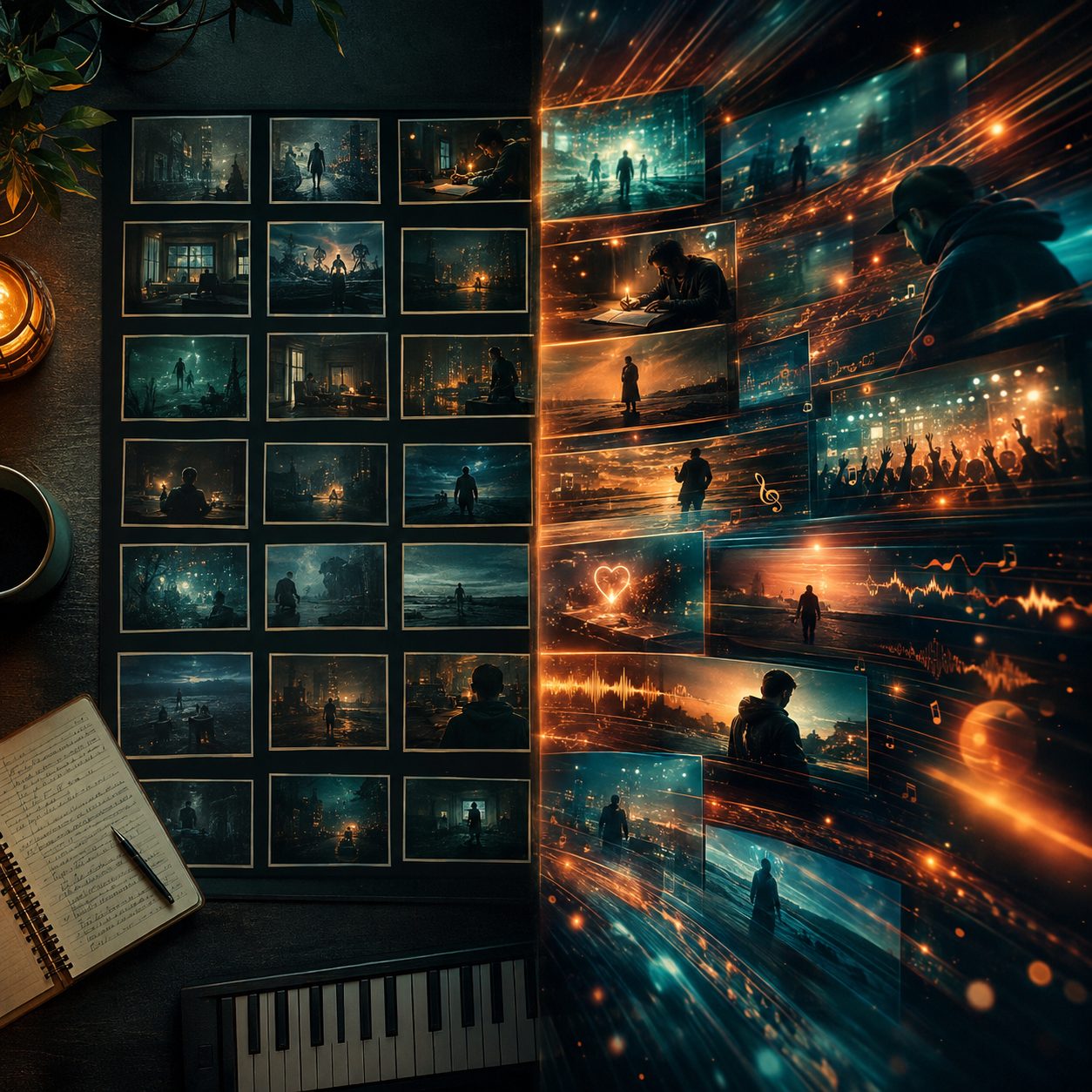
Still storyboard vs real motion — lock the stills, then animate what earns it.
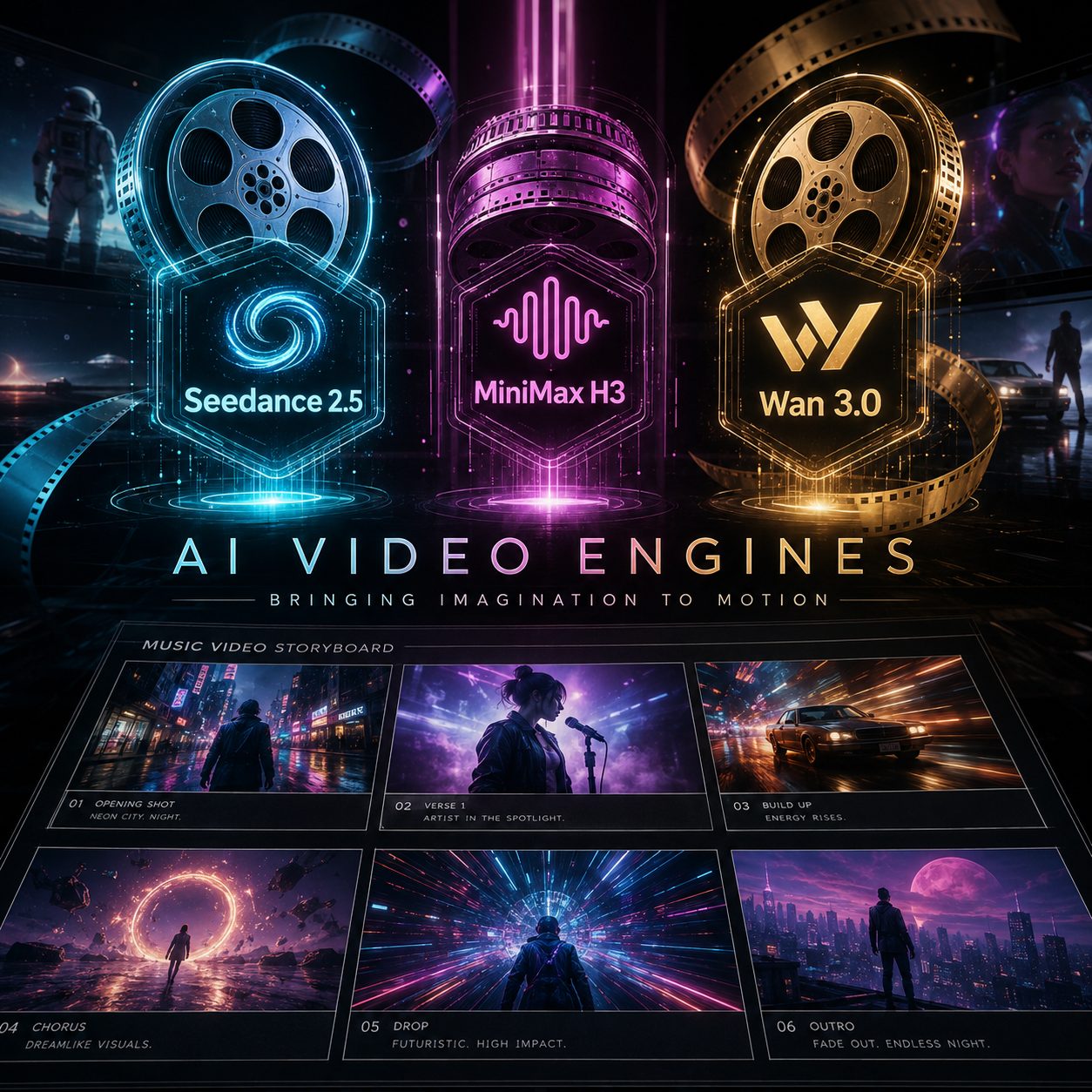
Newer engines — Seedance 2.5, MiniMax H3, Wan 3.0 — sit alongside the rest of the motion roster.
SunoMV supports leading video models. Highlights of the current public roster:
- Seedance 2.5 — the new ByteDance flagship for longer, richer motion shots
- Seedance 2.0 / Fast / Mini / 4K — the workhorse family, from thrifty drafts to native 4K
- MiniMax H3 and MiniMax H3 Max — H3 for high-detail 2K motion; H3 Max when you want speed
- Wan 3.0 and Wan 3.0 Prime — Alibaba’s latest generation (Prime when you want the faster lane); Wan 2.7 remains for ultra-smooth budget motion
- Also available: FLUX 3, Gemini Omni 1.1, Veo 3.1 Fast / Lite, Kling O3 Pro / O3 / v2.5 Turbo, LTX 2.5, Grok Imagine 1.5, Happy Horse 1.1
Pick per moment, or keep the style’s preferred default and ship.
Practical rule: Lock the still storyboard first. Spend motion credits on the chorus and ending before you animate every lyric line on a long track.
Polish: subtitles, waveform, and cover
With scenes and motion in place:
- Subtitles — classic, viral pills, cinematic captions, karaoke word-by-word highlight. Lyrics sync to the beat; one-tap re-sync tightens syllable timing.
- Waveform — optional audio visualizer (bars, mirror, pill, radial, and more), or switch it off.
- Cover & info — replace the cover, rename title and artist, control what shows on screen.
Export anywhere
Export MP4 in the ratio your platform wants — 16:9 for YouTube, 9:16 for TikTok / Reels / Shorts, 1:1 or 4:5 for Instagram. Or export a clip, a looping GIF, a single frame, highlight reel, audio, subtitle files, or a printable scene-by-scene score sheet.
Step-by-step: your first AI music video
Step 1 — Bring in your song
- Paste a Suno link —
https://suno.com/song/...(short/s/links work too) on suno.bi. - Upload your own audio — original, cover, or podcast clip (paid plans).
- Create a song — generate music inside SunoMV (paid plans).
SunoMV pulls title, lyrics, duration, and cover, and syncs lyrics to the beat.
Step 2 — Pick Style
Open the Pick Style popup. Choose a visual style that fits the genre. This sets the look for the whole first pass.
Step 3 — Batch Generate on the timeline
Hit Batch Generate at the top-right of the timeline. That is your full storyboard — one cinematic frame per lyric line.
Step 4 — Optional deep edits
Click any scene dialog to regenerate, lock a face, tweak a prompt, or swap the image model. Skip this entirely if the first pass already feels right.
Step 5 — Add motion where it counts
Run the motion pass on the chorus and ending (or the whole track). This is the step that turns a slideshow into a music video.
Step 6 — Style it, then export
Pick subtitles, waveform, cover, aspect ratio, and export.
Pricing and credits (what each plan actually buys)
SunoMV bills credits, not a vague “songs per day” for storyboards. Important clarifications people miss:
- AI scene images are charged per image (credits). A few samples or a few stills per song can be light; a full storyboard for every lyric line consumes credits — that is expected, not a hidden daily free refill.
- Pro Creator is a monthly credits pool (5,000 credits each cycle). It is not “unlimited full storyboards every day.”
- Motion / AI video also consumes credits. Stills + motion on the big moments is the efficient path; animating every line on a long track is the heavy path.
- Preview and style exploration are designed so you can see the look before you commit spend. The app shows the cost before you generate.
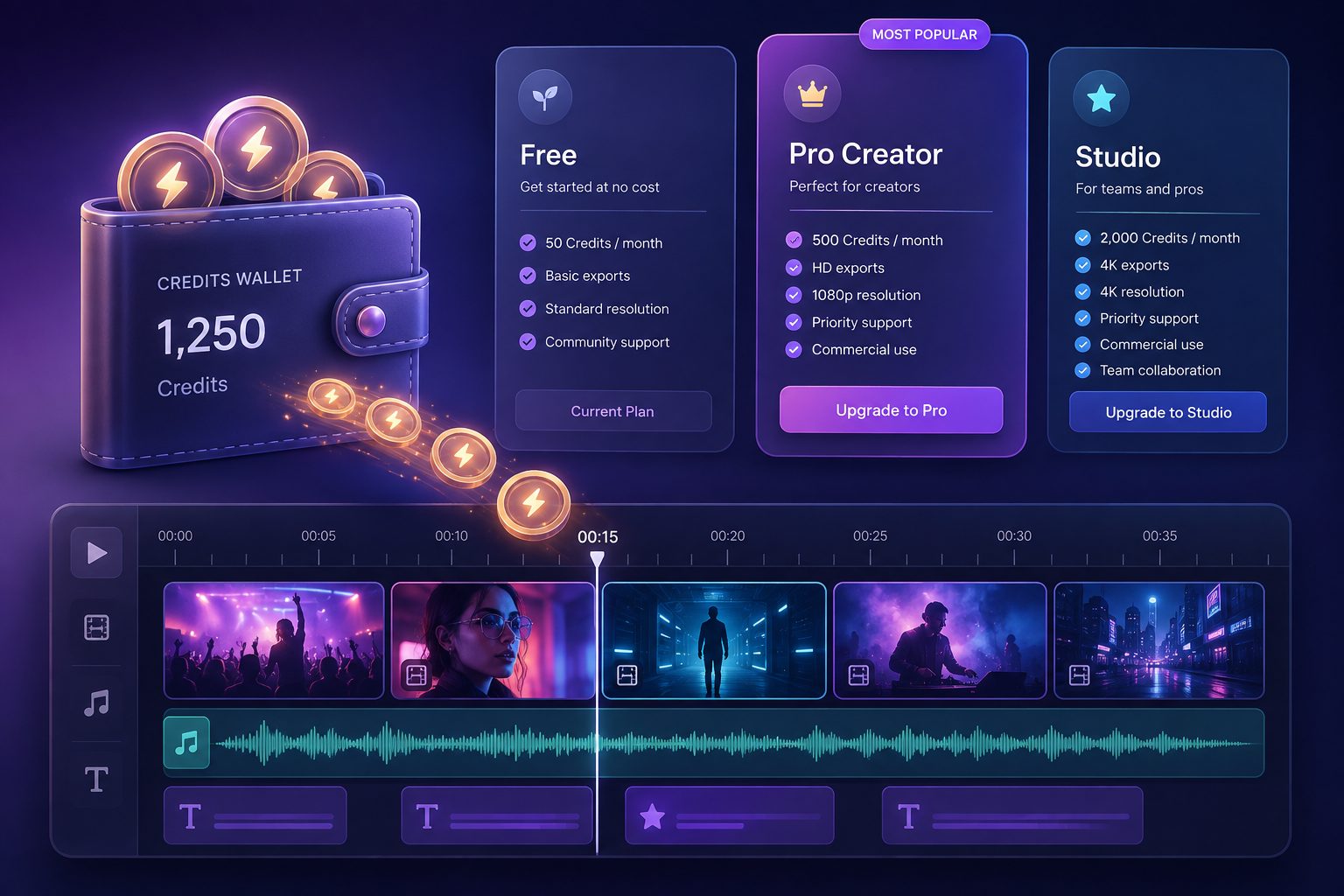
Free / Pro Creator / Studio all bill credits: a full storyboard and motion both spend the pool.
| Free | Pro Creator | Studio | |
|---|---|---|---|
| Best for | Try the workflow | Finish real MVs each month | Daily / multi-account volume |
| Monthly credits | Welcome / trial credits | 5,000 / month | 20,000 / month |
| AI scene images | A few stills from trial credits | Full storyboards from the monthly pool (credits, not a daily quota) | Same, larger pool |
| Motion (final-cut video) | Limited trial | Credits — typically full stills + motion on chorus / ending | Credits — high-volume motion |
| Create / upload audio | Paste Suno links | Links + upload + AI compose | Same |
| Export | Preview the cut | 1080p, watermark-free, commercial use | Up to 2K (some image models to 4K) |
| Top-up packs | — | +10% bonus credits | +25% bonus credits |
Automatic lyric sync is included on every plan. Plus ($9.9) remains for grandfathered members only and is no longer the plan we recommend for new creators.
- Just exploring? Free is enough to feel Pick Style → Batch Generate → preview.
- Shipping YouTube / TikTok regularly? Pro Creator’s 5,000 credits are sized for finishing artwork on a full song, then putting real motion on the moments that need it — usually a few 3-minute videos a month.
- Daily release or a label pipeline? Studio’s 20,000 credits and faster concurrency are the volume tier.
Pro tips
- Match the look to the music. Style is the biggest quality lever — pick it before you batch everything.
- Two-click first, dialogs second. Ship a first cut before you micro-direct every row.
- Lock faces early if the same singer must recur.
- Storyboard first, motion second. Perfect the still cut, then spend motion where the song earns it.
- Talk to the AI Director Assistant when you want to steer by voice — and tell us when a beta edge case breaks. Early feedback is how we harden it.
Where to share
- YouTube — 16:9, cinematic captions, song keywords in the title.
- TikTok / Reels / Shorts — 9:16, bold captions, strong first three seconds.
- Instagram — portrait scenes with clean subtitles.
- X / Twitter — SunoMV links open with an inline player.
Start creating
Whether you just finished your first Suno track or you have a library of hundreds, SunoMV takes you from audio to a real, moving music video without turning you into a full-time editor: Pick Style → Batch Generate → motion on the moments that matter.
Head to suno.bi, bring in your song, and direct your first AI music video now.
Popular guides
More in this series
- Is Suno AI Free? 50 Credits a Day, but Downloads Are Capped (2026)
- AI Music Video Generator vs. Manual Editing: Which Gets Your Song On-Screen Faster (2026)
- Free AI Music Video Generator: Complete Guide (2026) — Make Your First MV Today
- How to Make a Music Video With AI From Any Song (2026 Guide)
- Suno Only Gives You a Short Clip — Here's How to Turn It Into a Full-Length Music Video (2026 Guide)